
ImageGPTImageGPT

Photo

Blur Photo Background Online

AI blurs the background like a fast portrait lens: your subject stays crisp and everything else turns into soft bokeh.

6 free credits on sign up

I

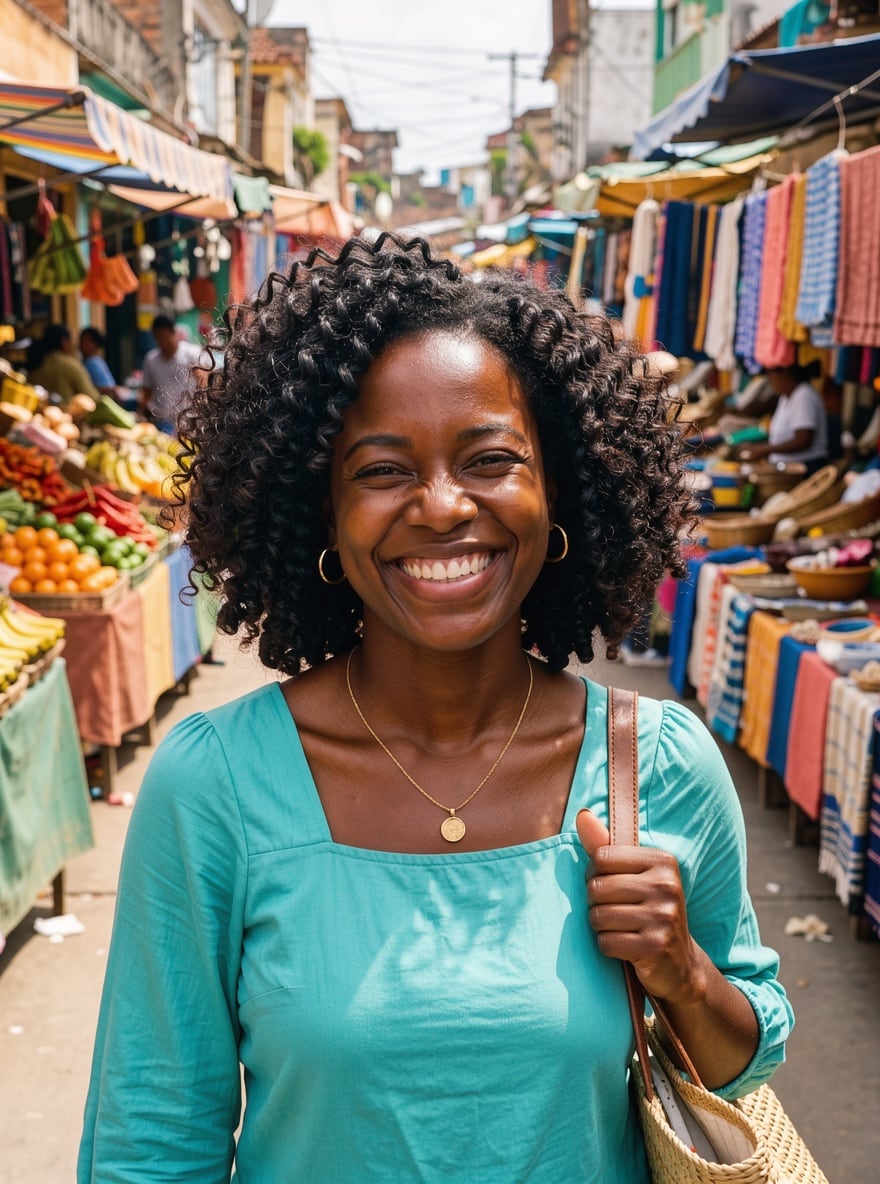
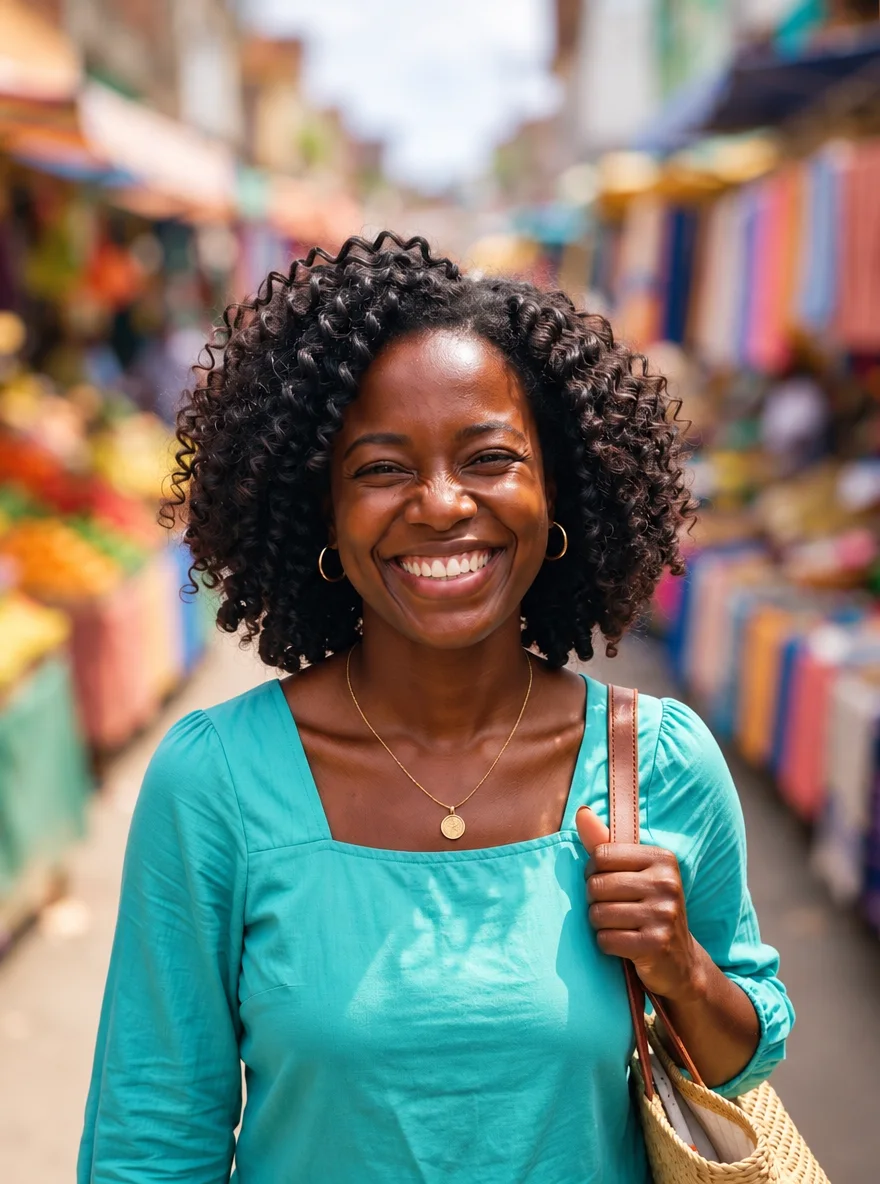
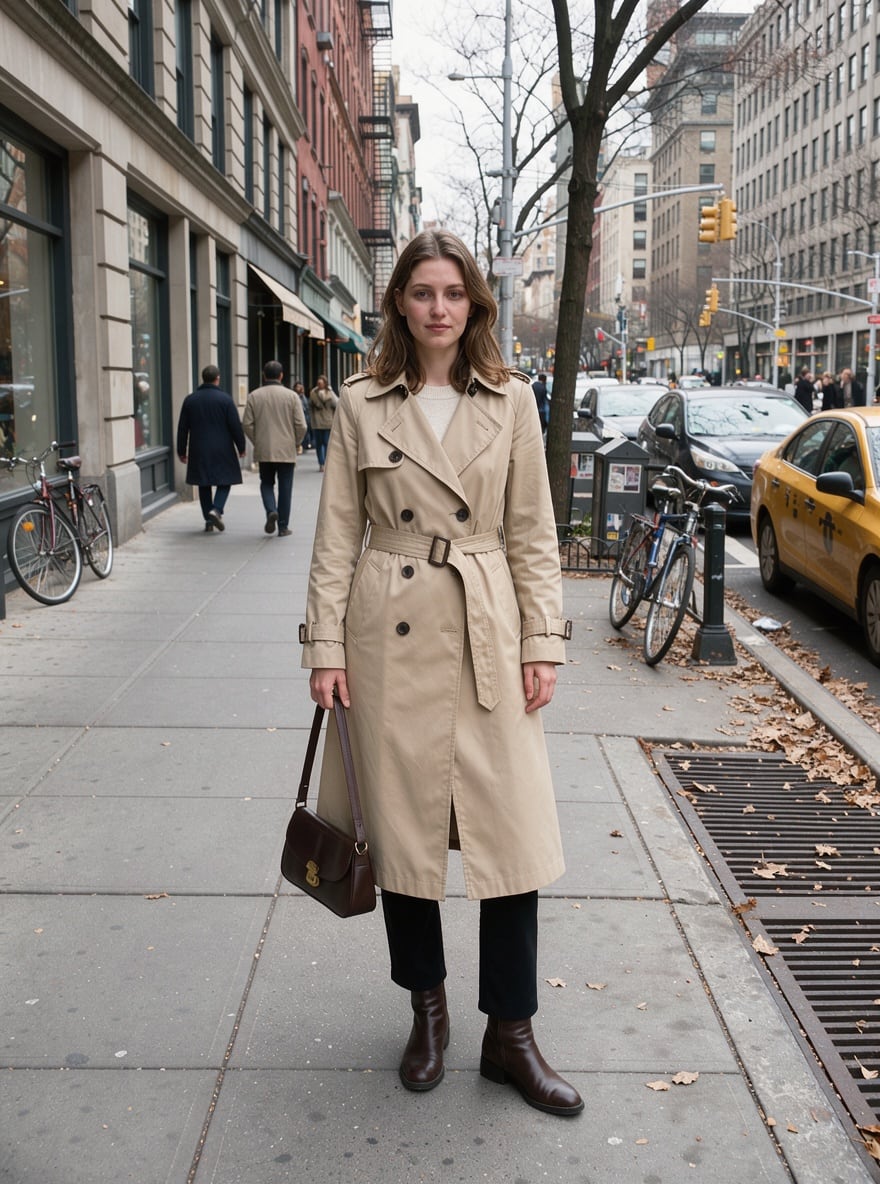
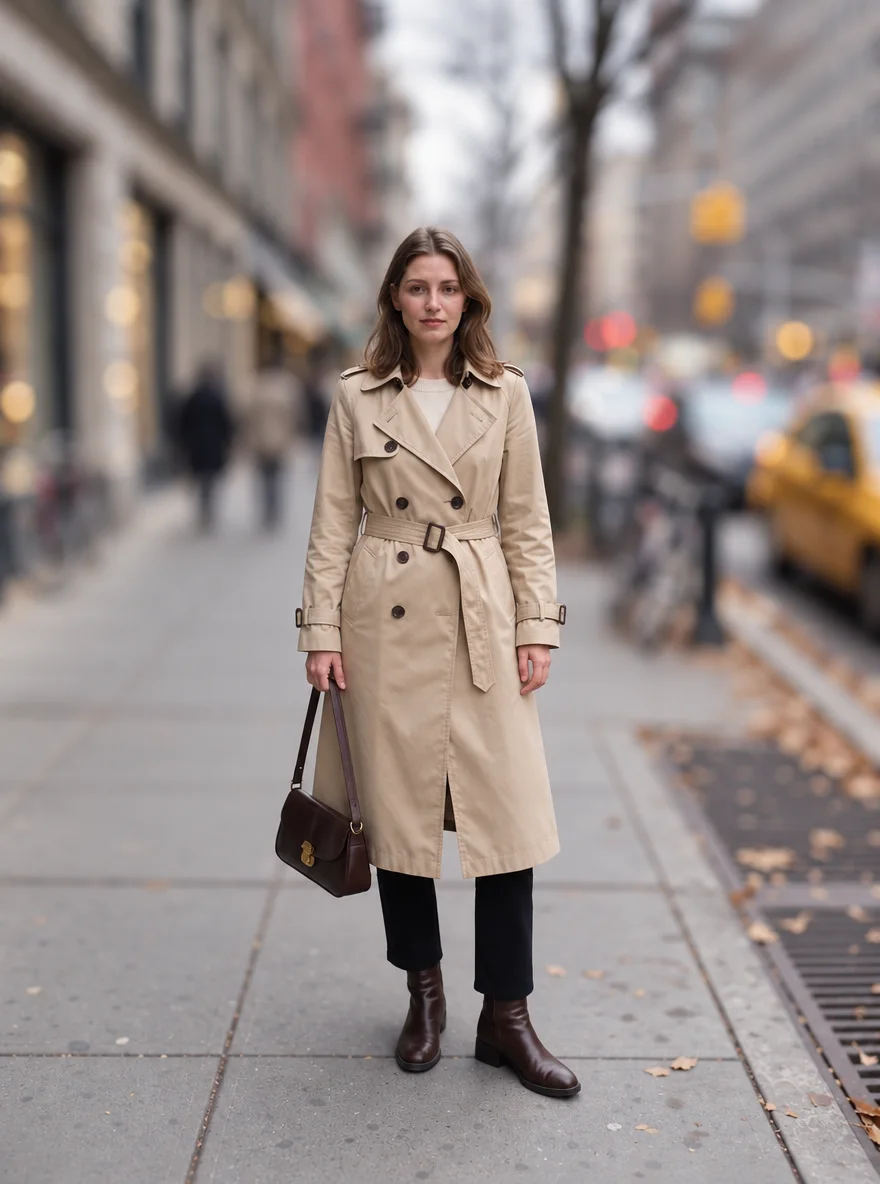
Before and after background blur

Real outputs of the model: the request and what came out, with no retouching

«Busy market → soft bokeh»

Photo Editor · GPT Image 2.5

«Crowded street → blurred background»

Photo Editor · GPT Image 2.5

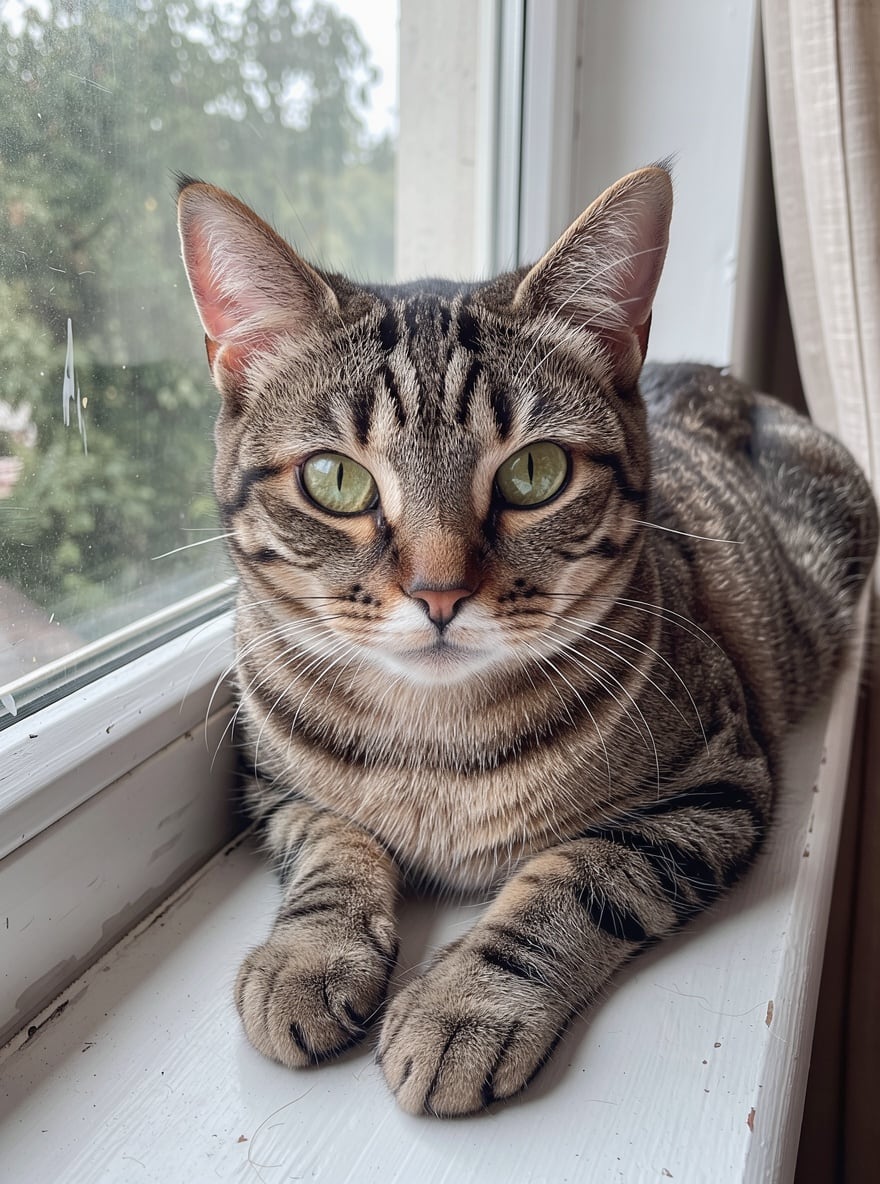
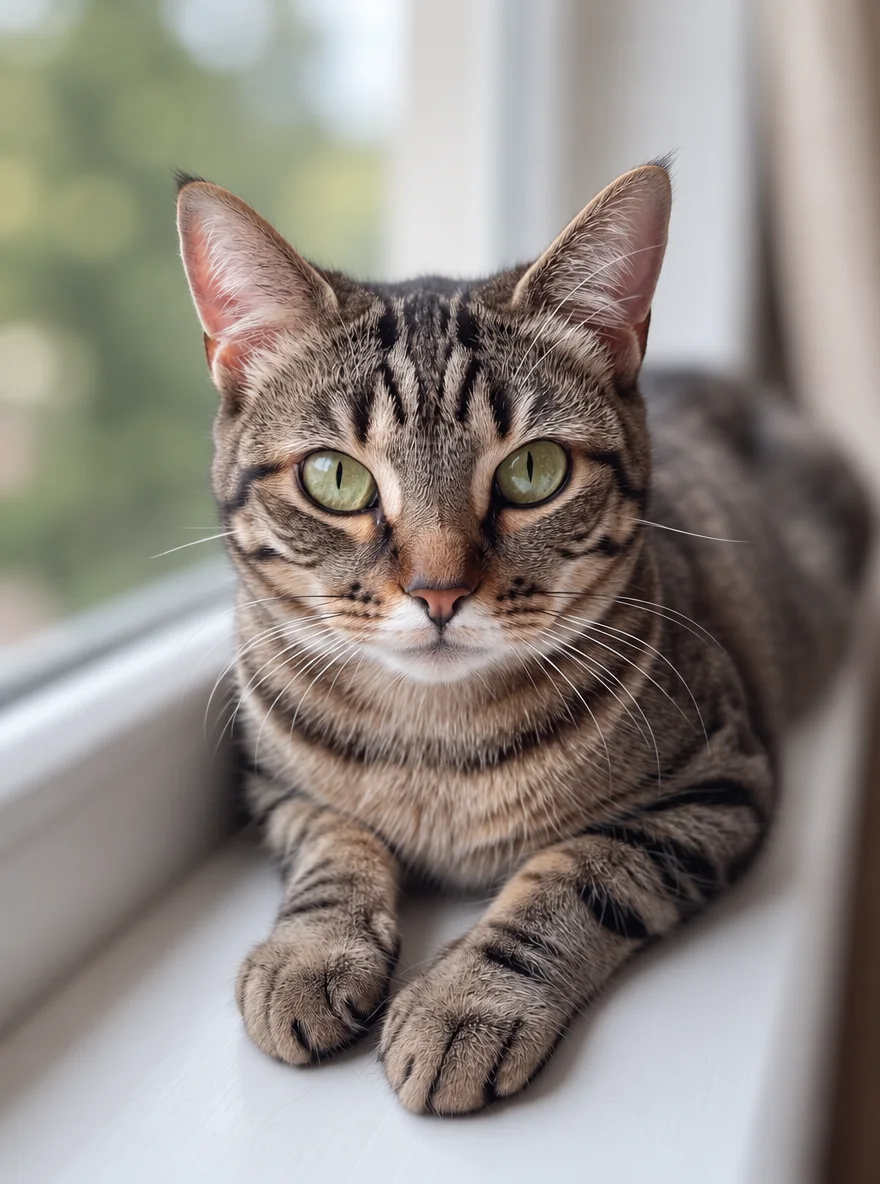
«Cat on a windowsill → shallow depth of field»

Photo Editor · GPT Image 2.5

II

Phones shoot everything equally sharp, so the passers-by, signs and trash cans behind you are in focus too. Portrait mode doesn't always help, and editor blur tools tend to chew up hair and clothing edges. AI understands what matters in the shot and blurs the background with depth in mind — nearby objects a little softer, distant ones much more, like a real lens at a wide aperture.

Open the AI Photo Editor, upload a photo and write: "blur the background like a portrait lens, keep the person sharp". GPT Image 2.5 is the model to use here — it produces strong, natural-looking bokeh and works carefully around hair, hands and fine details. Control the strength in words: "slightly blur" or "heavily blur the street and the people".

Background blur works for portraits, pets, products and food. Your original stays untouched and every version is saved separately. If you'd rather replace the background or remove it entirely, use Change Background or Remove Background.

III

How the blur works

01

Like a real lens

Bokeh that follows the depth of the scene

02

Clean edges

Hair, hands and clothing stay sharp

03

Your strength

"Slightly" or "heavily" — in words

04

Original kept

Every version is saved separately

IV

When it helps

Portraits

Hide passers-by and a busy background

Pets

Your cat or dog sharp, everything else soft

Food and products

Focus on the dish or item, ad-style

Profile pictures

A clean portrait without distractions

V

How to blur a photo background

01

Upload a photo

Portrait, pet, product or food

02

Ask for a blurred background

Choose GPT Image 2.5 and describe the strength

03

Download the result

Ready in 10–60 seconds

VI

What you can blur

See what you can create — try it yourself

Prompt

«Blur the background, keep the person sharp»

Result

A portrait with soft bokeh

Prompt

«Heavily blur the street and the people»

Result

Nothing distracts from the subject

Prompt

«Blur everything except the cat»

Result

A shallow depth-of-field look

Prompt

«Slightly blur the background behind the cake»

Result

A tasty menu photo

VII

Pricing

Pay only for results — no subscription

All plans →
Model / operationCredits
  • GPT Image 2.5 · low quality2 cr.
  • GPT Image 2.5 · medium quality4 cr.

Credit packs: 150 credits for $5, 350 credits for $12, 1250 credits for $35.

VIII

Background blur FAQ

How do I blur the background of a photo online?+

Open the AI Photo Editor, choose GPT Image 2.5, upload your photo and write: "blur the background like a portrait lens, keep the person sharp". In a few seconds you get a photo with soft bokeh.

Which model is best for blurring?+

GPT Image 2.5 — it gives the most noticeable and natural blur. The other editor models tend to leave the background almost unchanged.

Can I blur only part of the background?+

Yes, describe it: "blur the people on the right", "blur only the far background". The model understands where things are in the shot.

Can I remove the background instead?+

Yes. For a transparent PNG use Remove Background, and to put in a different scene use Change Background in the same editor.

How much does it cost?+

2 credits in GPT Image 2.5 fast mode and 4 in standard mode. If a generation fails, your credits are refunded.

Try for free

Sign up for free and get 6 credits right away. No card required.