How to Make a Personalized Video Message from Santa That Uses Your Child's Name
Santa calls your child by name, remembers the first lost tooth and hints that a gift is on its way. Real examples, step by step, and what to tell the AI.
Contents
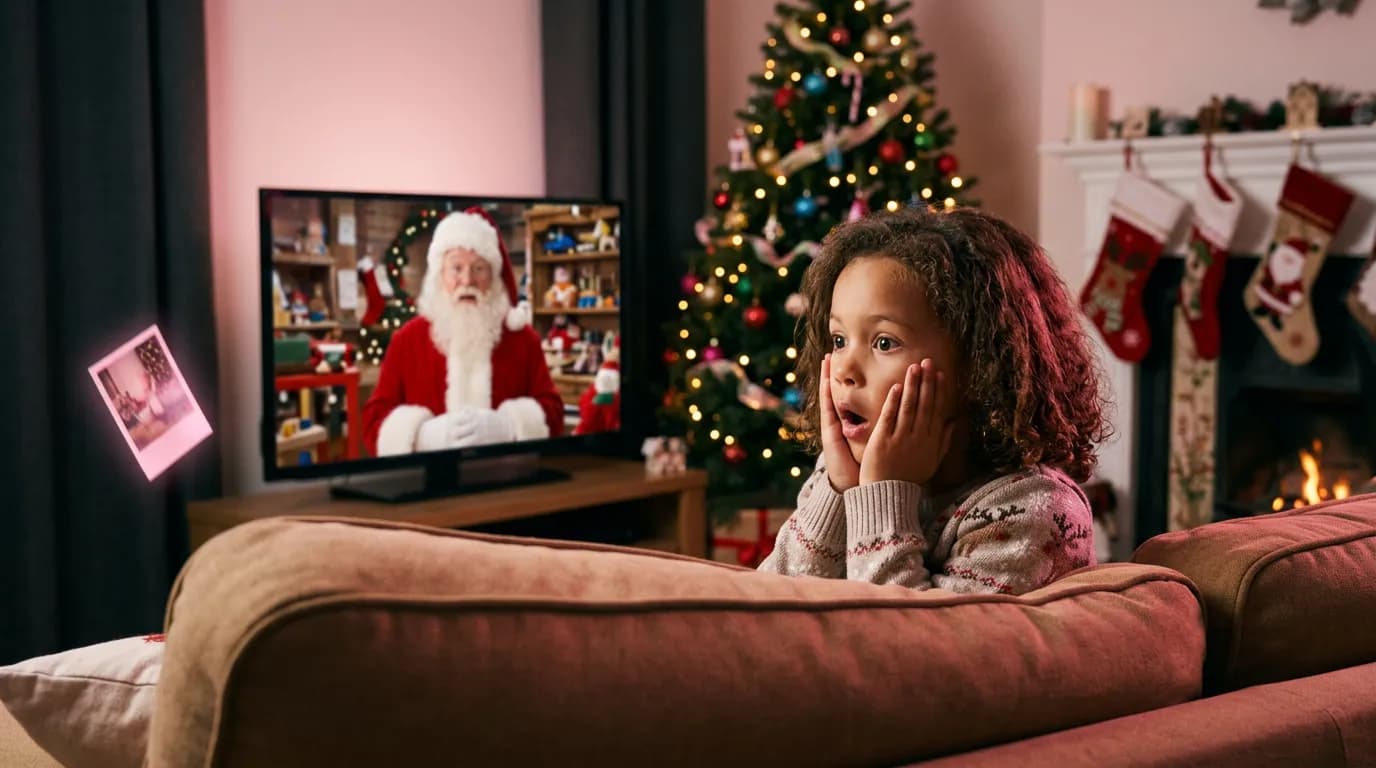
By six or seven, most kids have seen the generic “Santa says hi” videos, and they can tell. What gets the gasp is Santa saying their name and knowing something real: that Oliver lost his first tooth and was very brave about it, or that Ava finally swims without floaties.
The Santa video message tool on ImageGPT does exactly that. You fill in a short form about your child, AI writes Santa's message, and Santa — or Mrs. Claus — says it straight to the camera, lips moving in sync with every word. Here's a real one made with the tool:
What's in the video
- Who sends it: Santa Claus or Mrs. Claus, each with their own voice. Ded Moroz and Snegurochka, the Russian New Year characters, are there too — nice for families with Russian or Eastern European roots.
- Occasion: Christmas & New Year, or Birthday.
- Setting: Santa by the fireplace, in his toy workshop or in a snowy village; Mrs. Claus in her gingerbread kitchen or by the fireplace; for birthdays, a table with a birthday cake.
- A message written for your child from your form. It's free, and you can edit it or write your own, up to 750 characters.
- A title card like “Merry Christmas, Oliver!” and soft festive music under the voice. The music can be switched off.
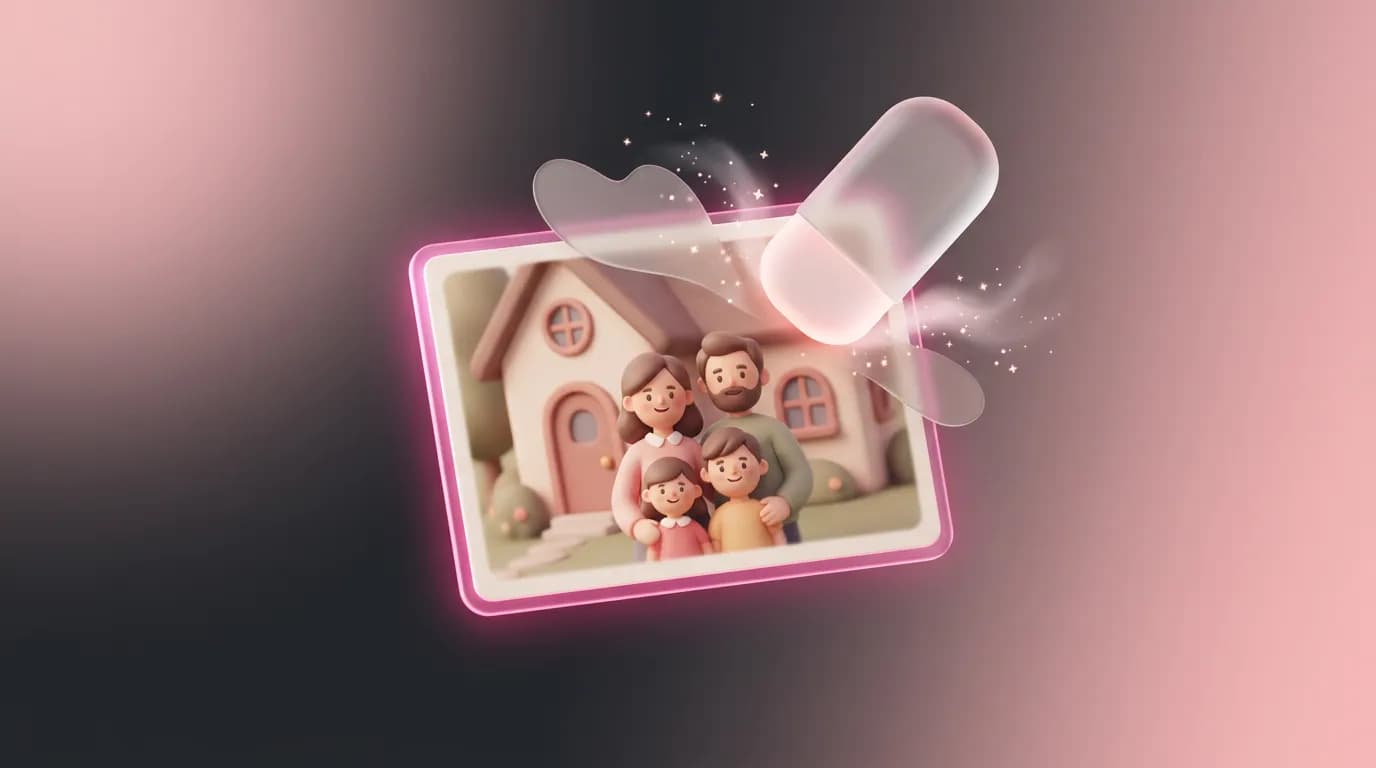
- An optional photo of your child in a carved wooden frame in the character's hands.
- 720p video, vertical 9:16 for phones or widescreen 16:9 for the TV.
How it works
First, AI writes 25–40 seconds of slow, warm speech that greets your child by name, mentions what they did this year and ends with a wish. If you enter a gift, Santa only hints that it's on its way — no other promises you'll have to keep. Every script is checked before recording, so nothing rude, political or grown-up gets in.
ElevenLabs then voices the script in the character's voice, and MiniMax H3 Lip Sync animates the scene. Finally the video is put together: the title card, the speech, a held last frame and music that dips whenever Santa talks.
What to prepare
- The name your child actually hears at home — “Ellie”, not “Eleanor”, if that's what everyone calls her.
- Their age. It's optional, but it sets the tone: Santa speaks more simply to a four-year-old.
- Two or three real things from this year: something they learned, something they love, something you're proud of. “Learned to ride without training wheels” beats “was a good kid”.
- Who it's from: “Mom and Dad”, “Grandma and Grandpa”.
- Optional: a gift hint and a photo where their face is clearly visible.
Step by step
- Open Personalized Video Message from Santa in the Video section.
- Under Who sends it, pick Santa or Mrs. Claus, then the occasion, the setting and the format.
- Fill in the name, Who is it for and the age. In About them and your wishes, add the facts — up to 400 characters.
- Add who it's from and, if you like, a gift hint.
- For the photo frame, upload a picture under Photo in a frame.
- Click Write the message. The script appears under Message text with its approximate length in seconds. Edit it, or click Write again.
- Check the Title card and the Festive music switch, then click Create video. It's ready in 2–3 minutes and saved in your history.
What to tell Santa: examples
This goes into About them and your wishes. Write it the way you'd tell a friend; the AI turns it into Santa's words.
Started kindergarten, can write her whole name, feeds the class hamster on Fridays, wants a puppy
Learned to swim without floaties, obsessed with dinosaurs, got braver about sleeping with the lights off
Sang a solo at the school winter concert, builds Lego cities, helps Grandpa rake the leaves
Skip anything that would sound like a telling-off coming from Santa — “needs to eat his vegetables” or “fights with his sister”. Stick to things your child can be proud of.
Birthdays, the photo frame and the TV version
Santa isn't only for December. Pick Birthday and the character sits at a table with a cake, and the title card reads something like “Happy Birthday, Ava!”. Here Mrs. Claus does the honors, in widescreen for the TV:
With a photo, GPT Image 2.5 first edits the scene so the character holds a small wooden frame with your picture at chest height; the setting, costume and face stay the same. Vertical is best for sending by text or WhatsApp, widescreen for the living-room TV. You choose the format before recording, so if you want both, make the video twice.
Pricing
The price depends on how long the character speaks. A 30-second message is 218 credits, a 45-second one is 326 credits, and a 35-second message with a photo in a frame is 260 credits. The longest message is one minute of speech.
The AI script is free. You see the approximate price before you pay and can trim the text if you'd like it lower. If the video fails, the credits come back.
FAQ
Does it work for grown-ups?
Yes. Enter the age and the script drops the kid talk. Santa still sounds like Santa, though, so most people make these for kids.
Can I write the script myself?
Yes. Replace the AI text with your own, up to 750 characters. The approximate length and price update as you type.
When should I share it?
Whenever suits your family: a surprise on Christmas Eve, first thing on Christmas morning, or the night before a visit to see Santa.
Tell us about your child and Santa will greet them by name.
Make a Santa videoAll the settings, examples and prices on one page.
Santa video messageTry everything from this article in minutes
All the models and tools from this article are in one place. You get 6 free credits after sign-up, and every price is shown before you run it.
Make a Santa video