How to Split an Image into Layers with AI (and Export a PSD)
We split a flat coffee-shop ad into eleven layers — barista, latte cup, pumpkins, headline and all — rearranged them in the browser and downloaded a layered PSD.
Contents
You've generated an ad that's almost right. The person just needs to move left to make room for copy, and one line of text has to go. In a flat image that's a real job: cut the person out, rebuild whatever was behind them, and hope the edges hold up.
Image to Layers does that part for you. Seedream 5 finds the background, people, objects and text in your picture, puts each one on its own transparent layer, and fills in the background wherever something used to cover it. You can then move and hide layers right in the browser and download the result as PNG, PSD or ZIP.
Example: a seasonal coffee-shop ad
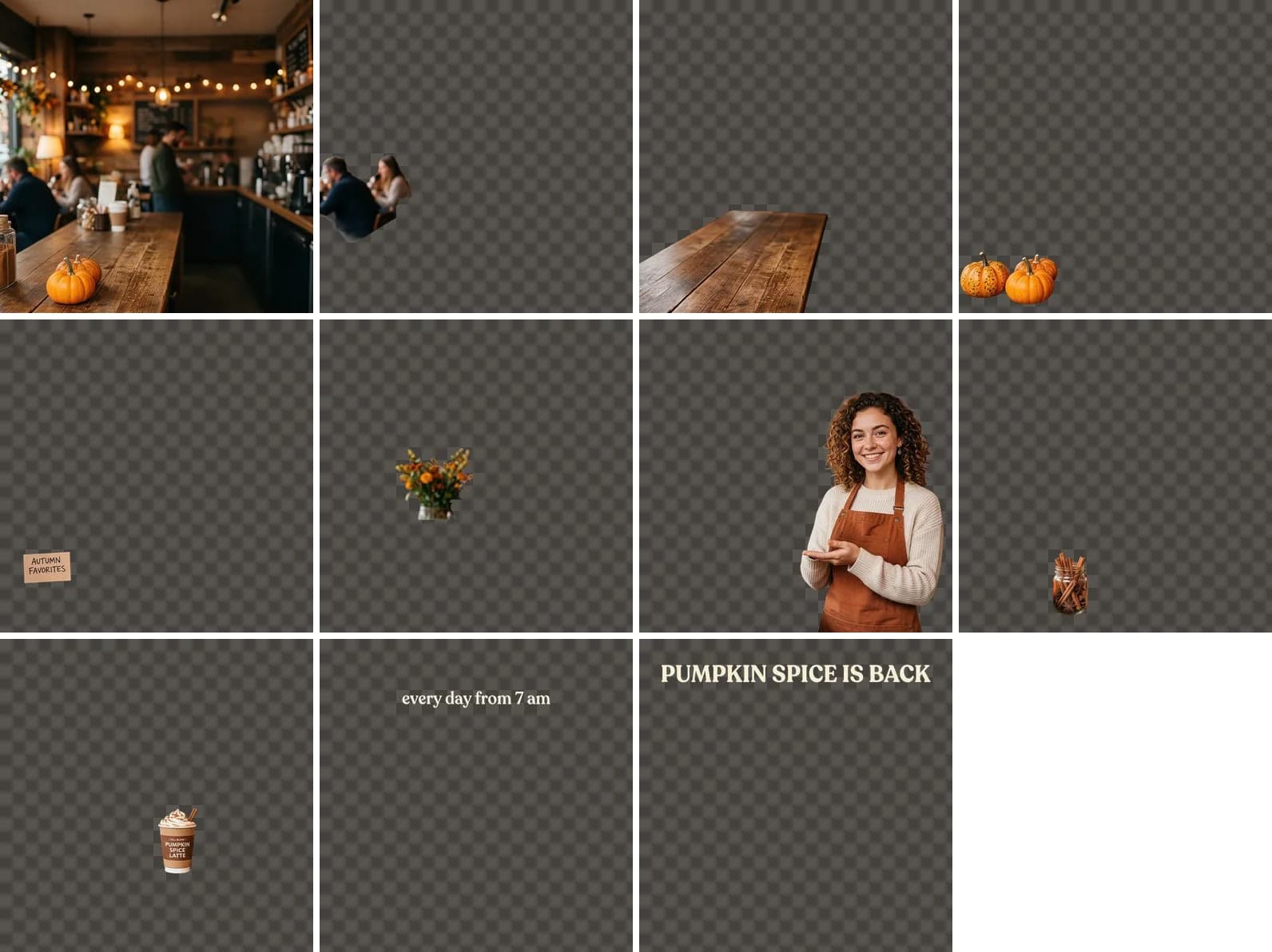
For this walkthrough we generated a square ad with Nano Banana 2: a barista holding a pumpkin spice latte, pumpkins and cinnamon sticks on the counter, a little sign and two lines of text.

Seedream 5 Pro took just under two minutes and returned eleven layers: the café background, the guests at the back, the counter, the pumpkins, the Autumn Favorites sign, a bouquet, the barista, a cinnamon jar, the latte cup, and each line of text separately. Note that the cup came out as its own layer, separate from the hands holding it, and that the background behind the barista was filled in with more of the café.
What you can do in the editor
- Move things: click an object in the picture to select its layer, then drag it. Arrow keys nudge the selected layer by 1 px, or 10 px with Shift.
- Hide layers with the eye icon — handy for removing a line of text or a stray prop.
- Change the stacking order by dragging a layer in the list or using the arrows next to it.
- Undo everything with Reset.
For the version below we moved the barista and her cup to the left, brought the pumpkins above her so they sit on the counter in front of her, and hid the little sign. The headline stayed exactly where it was.

Step by step
- Open Image to Layers in the Photo section.
- Upload a poster, photo, illustration or banner — or pick something from your recent work.
- Choose a model: Seedream 5 Pro is more precise, Seedream 5 Flash is faster and cheaper.
- Optionally, tell it what must end up on separate layers in the What to separate field.
- Click Split into layers. The layers open in the editor as soon as they're ready.
- Move and hide what you need, then export. The layers stay in your history, so you can reopen them later and build a different version — just note that the arrangement itself isn't saved, so export the one you like.
PNG, PSD or ZIP?
| Format | What's inside | Use it for |
|---|---|---|
| PNG | The flattened image, exactly as on screen, without hidden layers | Posting or sending right away |
| PSD | Every layer with its name and position; hidden layers stay hidden | Finishing in Photoshop or Photopea |
| ZIP | Each layer as a full-canvas PNG plus the flattened image | Rebuilding the layout in Figma, Canva or any other editor |
Prompts for the What to separate field
The field is optional — without it the model decides what to separate. If a specific detail has to be its own layer, name it:
Separate the logo and the tagline
Put each person on their own layer
Models and pricing
| Model | When to use it | Price |
|---|---|---|
| Seedream 5 Pro | Busy images with people, small objects and text | 5 credits |
| Seedream 5 Flash | Quick tests and simple images | 4 credits |
The price is the same however many layers come back, and you're only charged when the split succeeds.
Limitations
- Text becomes pixels, not live type. You can move or hide it, but not retype it — add new copy on top in Photoshop or Figma.
- The model invents the background behind objects. On complex scenes it may not be what you expect, so hide the top layers and check it.
- A single object on a plain background leaves little to separate; the tool will tell you it couldn't split the image, and nothing is charged.
Upload an image and get editable layers in a couple of minutes.
Split an image into layersTry everything from this article in minutes
All the models and tools from this article are in one place. You get 6 free credits after sign-up, and every price is shown before you run it.
Split an image into layers