How to Convert PNG to SVG: Free Tracing vs an AI Vectorizer, Compared Up Close
One logo, three versions, zoomed in 8×: where the PNG turns into pixels, where free tracing leaves jagged bits, and what the AI vectorizer does differently.
Contents
Sooner or later every small business finds out its logo only exists as a PNG. The print shop wants a vector for the banner. The Cricut or the laser cutter needs paths to follow. The PNG that looked fine in the email signature turns soft on a big screen. Renaming logo.png to logo.svg doesn't help: SVG describes a picture as shapes and curves, not pixels, so the outlines have to be traced.
Converters & compressors on ImageGPT has a To SVG tab with two ways to do it. AI vectorizer uses the Recraft Vectorize model, which traces clean outlines the way a designer would. Quick trace is free and runs in your browser, good for simple logos and icons.



PNG vs SVG, zoomed in
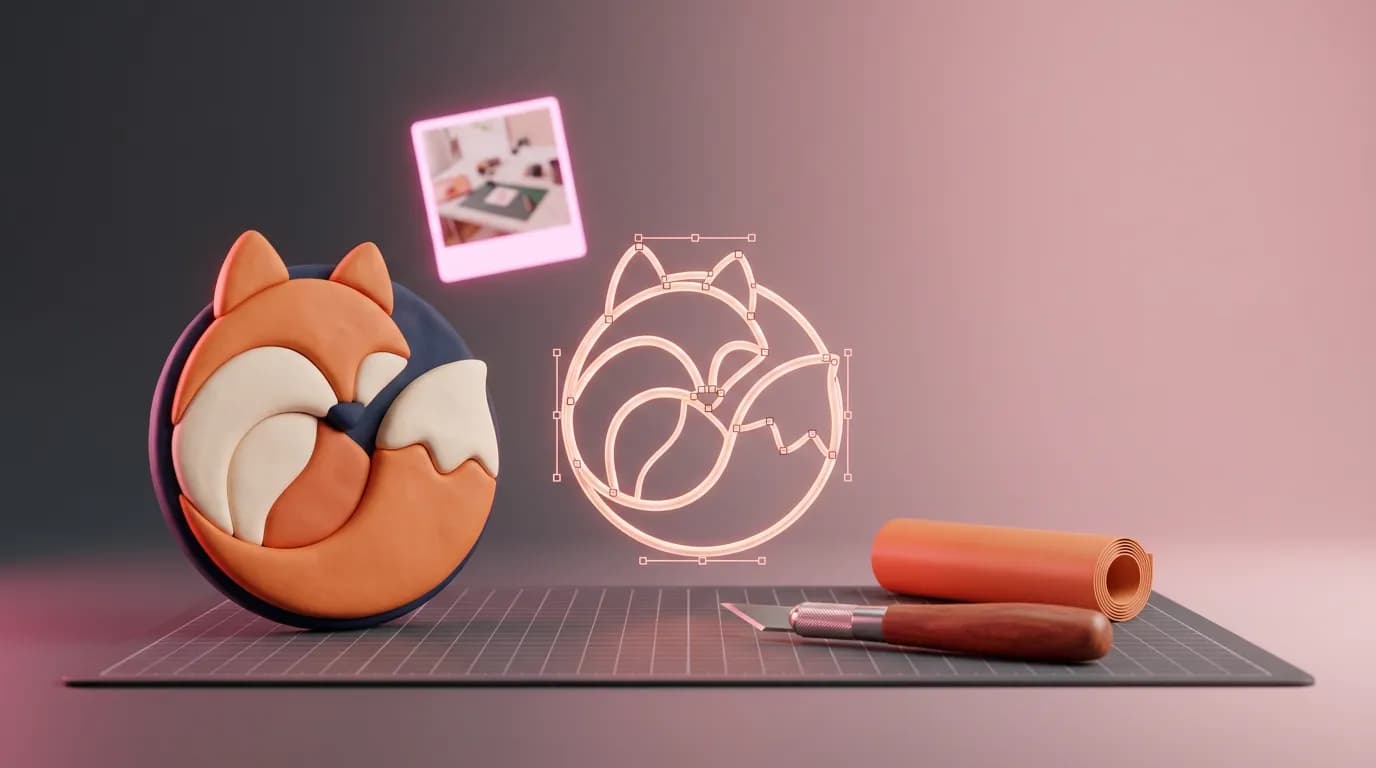
A PNG is a grid of pixels. Blow it up and the edges turn into steps and blur. An SVG stores shapes: a circle of this color, a curve from here to there. Stretch it across a billboard or shrink it to a favicon and the edges stay crisp. Here's the fox's face from the logo above at 8×:



Which one to use
| AI vectorizer | Quick trace | |
|---|---|---|
| Runs | On our server, Recraft Vectorize model | In your browser |
| Price | 2 credits per image | Free |
| Account | Required | Not required |
| Colors | Chosen by the model | B/W, 4, 8, 16 or 32 |
| Best for | Logos, icons and illustrations that need clean lines | Simple graphics, silhouettes, lettering, stamps |
| SVG in our test | 15 KB | 119 KB at 8 colors |
The AI model can tell an outline from noise and JPG artifacts, so it uses fewer paths and nodes and the file is lighter, eight times lighter in our example. The trace faithfully outlines every patch of color, semi-transparent edge pixels included. For a two- or three-color graphic that's all you need. For a logo going to print, use the AI.
Black and white is for one-color art
Quick trace has a B/W mode. It's ideal for a signature, a stamp, a silhouette or an ink drawing, anything that's one color to begin with. A color logo loses detail in it: our fox's orange and navy merged into one tone, and the eyes and nose went with them.

Before you start
- The largest version of the image you have. More pixels along the outlines means a more accurate trace.
- A clean logo: crop the margins and remove the background if you don't want it in the vector.
- Know where the file is going. For print, cutting and embroidery, use the AI; for an icon in a slide deck, the trace is enough.
- You can vectorize a photo, but you'll get a stylized picture made of flat color patches, not a photo.
Step by step
- Open Converters & compressors and the To SVG tab, or go to the PNG to SVG page where the tool is built in.
- Add the image: PNG, JPG or WEBP.
- Choose AI vectorizer or Quick trace. For the trace, pick the number of colors.
- Click Vectorize. The trace is ready almost instantly; the AI takes a few seconds.
- Download the SVG and open it in Figma, Illustrator, Inkscape, Cricut Design Space or your laser software.
Ask the Assistant
You can also attach the picture in a chat with the ImageGPT Assistant and describe what you need. For simple graphics it runs the free trace. When quality matters, for print, gradients or photos, it suggests the AI vectorizer and shows the price before anything runs. For example:
turn this logo into an svg
vectorize this logo with AI, it's going on a printed banner
Good to know
- AI results are saved in your history, like your other generations.
- Very large images are scaled down to 4096 px on the long side before they go to Recraft, and tiny icons are scaled up so the model has something to trace.
- The quick trace works on images up to 1000 px on the long side: more pixels barely improve the result and take longer.
- Text in the logo becomes outlines. It looks the same, but you can't edit it as text afterwards.
- Scripts and external links are stripped from the SVG, so it's safe to open anywhere.
Pricing
Quick trace is free and needs no account. The AI vectorizer costs 2 credits per image, and you're only charged if it succeeds. New accounts get 6 free credits.
Add a logo or an icon and get an SVG.
Convert to SVGExamples and FAQs on the tool page.
PNG to SVG converterTry everything from this article in minutes
All the models and tools from this article are in one place. You get 6 free credits after sign-up, and every price is shown before you run it.
Convert to SVG