How to Compress a Video for Discord, Email and WhatsApp Without Making It Look Awful
We took a 16-second 1080p clip weighing 58.7 MB and squeezed it three ways. Here's what each preset does to the picture, and how to hit an exact upload limit.
Contents
Phones shoot video at sizes nobody asked for: cameras record at high bitrates, and even a short clip easily runs to tens of megabytes. Try to drop one into a Discord channel and it bounces off your plan's upload limit. Attach it to an email and it's too big to go as an ordinary attachment. Send it on WhatsApp and the other person waits for it to download over mobile data.
Converters & compressors on ImageGPT fixes that in two clicks. Pick where the video is going, and you get an MP4 that plays on any phone, browser or chat app. It's free, there's no sign-up and no watermark, and everyday clips are compressed right in your browser, so they're never uploaded anywhere.
What compression actually does to a clip
For the test we generated a 16-second 1080p clip with AI, a mountain lake at sunrise followed by a forest waterfall, and saved it as an MP4 at a high bitrate of about 30 Mbps. That came to 58.7 MB. Then we ran it through three presets. The times below are processing only, on our server, without the upload.
| Preset | Resolution | Size | Processing |
|---|---|---|---|
| Original, MP4 | 1920 × 1080 | 58.7 MB | — |
| Telegram | 1280 × 720 | 8.1 MB (−86%) | 5 s |
| 1280 × 720 | 14.9 MB (−75%) | 11 s | |
| Strong | 854 × 480 | 2.4 MB (−96%) | 3.5 s |
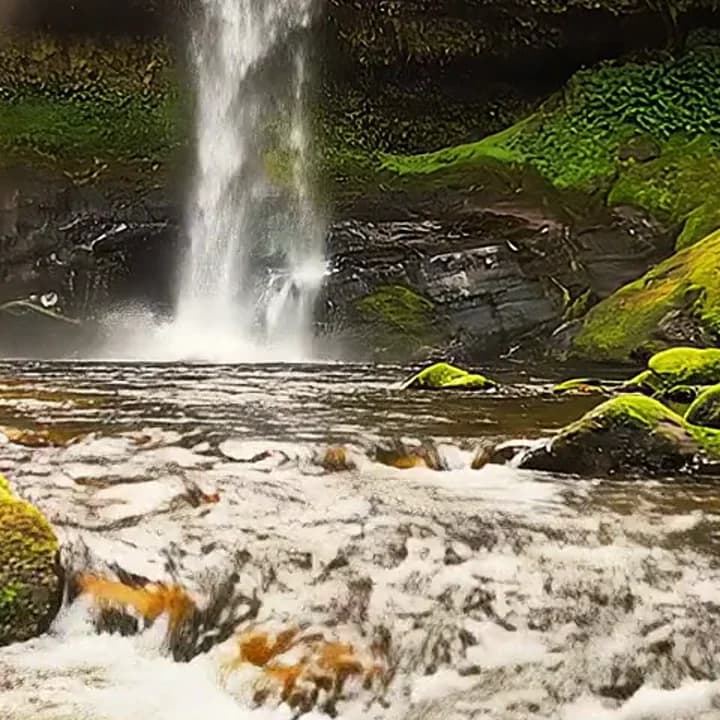
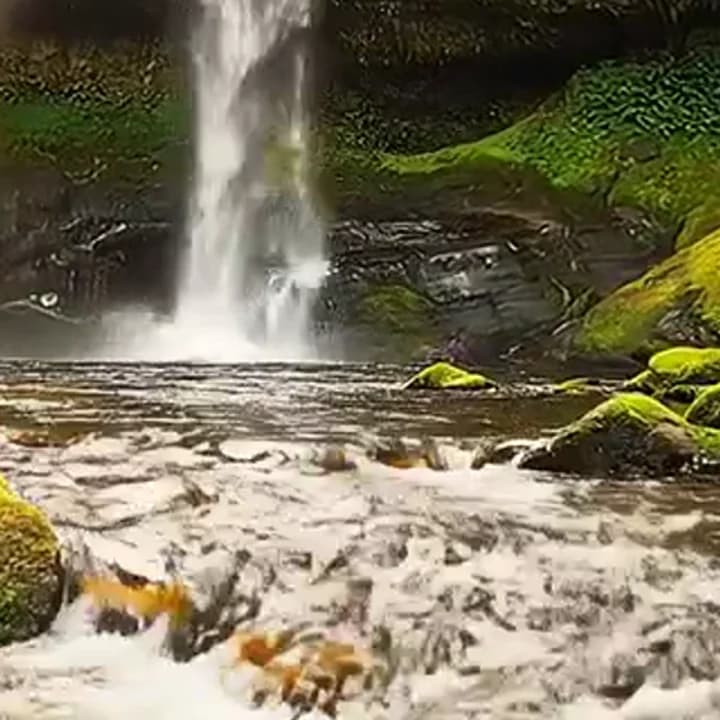

Keep in mind these are zoomed-in crops. Watched full screen on a phone, the original and the Telegram version are hard to tell apart. Strong is for when the content matters more than the picture: a screen recording, a meeting clip, a quick "look what's happening" video.
Which preset to pick
- Telegram: 720p at good quality. The size depends on how long the clip is and how much moves in it. A solid default for any chat app without a hard limit.
- WhatsApp: fits the clip into 16 MB at 720p. Longer clips get a lower bitrate automatically.
- Email: up to 24 MB, sized for an attachment.
- Web: 1080p, for clips people will watch on a big screen.
- Strong: 480p and the smallest file.
- Custom size: type a number in megabytes and the bitrate is worked out from the clip's length. If the target is impossible (an hour of video in 10 MB), the converter tells you instead of handing you mush.
Everything comes out as H.264, the codec every phone, browser and app can play. iPhone HDR footage is tone-mapped to regular SDR, so colors don't look washed out on Android or Windows. And if your clip is already smaller than the target, the converter keeps it as is and says so.
Compressing for Discord
Discord's upload limit depends on your plan, so there's no one-size preset for it. Find the limit that applies to you, choose Custom size and enter a number a little under it, so the file doesn't land right on the edge. The shorter the clip, the less quality you lose at the same size, so trim it to the part that matters first.
Before you start
- The clip itself: MP4, MOV, AVI, MKV, WEBM, WMV, FLV, 3GP or MTS.
- Where it's going. That decides the preset; for an upload form with a stated limit, use Custom size.
- Only need a part of it? Trim it in your phone's gallery first. The tool compresses the whole video.
Step by step
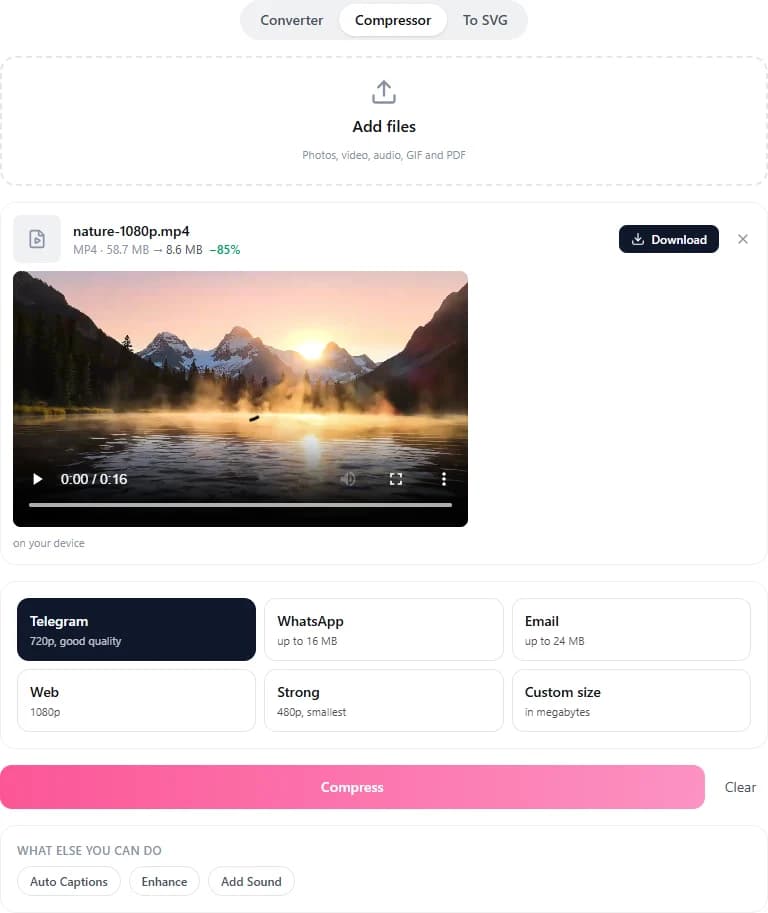
- Open Converters & compressors and switch to Compressor, or go straight to the Compress Video page where the tool is built in.
- Drag the video into the box, choose it from your device or paste it with Ctrl+V. You can add several files at once.
- Pick a goal: Telegram, WhatsApp, Email, Web, Strong or Custom size.
- Click Compress. Progress shows in the box, and each finished file lists its size before and after.
- Click Download. With several files, grab them all with Download all (ZIP).
Where your video goes
The tool tries your browser first, using your own computer or phone, so the file never leaves your device. That works for videos up to 1 GB. If the browser can't manage (an unusual codec, a huge file, or output to WEBM or GIF), the clip goes to our server and is deleted about an hour after it's ready. Without an account you can send files up to 100 MB and videos up to 10 minutes to the server; signed in, up to 500 MB and 30 minutes.
Three more things you can do with a video
- MOV to MP4. If the MOV already holds H.264, it's simply repackaged: seconds, no quality loss.
- Pull the audio out as MP3. In our test a 55-second 1080p clip became a 1.3 MB MP3 in 0.6 seconds.
- Make a GIF. The same clip gave a 2.4 MB GIF in 2 seconds. You choose the width, the frame rate and the length, up to 60 seconds.
Or just ask the Assistant
Don't feel like picking settings? Attach the clip in a chat with the ImageGPT Assistant and say what you need. It starts the job right away, for free, and gives you a download link. Things you can type:
compress this so it fits on WhatsApp
make this video small enough to email
extract the audio as mp3
Pricing
Compressing and converting are free: in the browser, on our server and in the Assistant chat. The only limits are file size and length, and they go up when you sign in.
Add a clip and pick where it's going.
Compress a videoAll the presets and FAQs on the tool page.
Compress video onlineTry everything from this article in minutes
All the models and tools from this article are in one place. You get 6 free credits after sign-up, and every price is shown before you run it.
Compress a video