
ImageGPTImageGPT

vCard QR code

vCard QR code generator

Name, phone, email, company and website in one code that saves straight to the phone's contacts.

I

Fill in the fields to get a QR code in the vCard format. Phone cameras recognise it as a contact and offer to save it — no more spelling out email addresses.

Put it on a business card, a badge, the last slide of a talk or your email signature. Download SVG or PDF for the printer.
II

Real results

vCard QR code
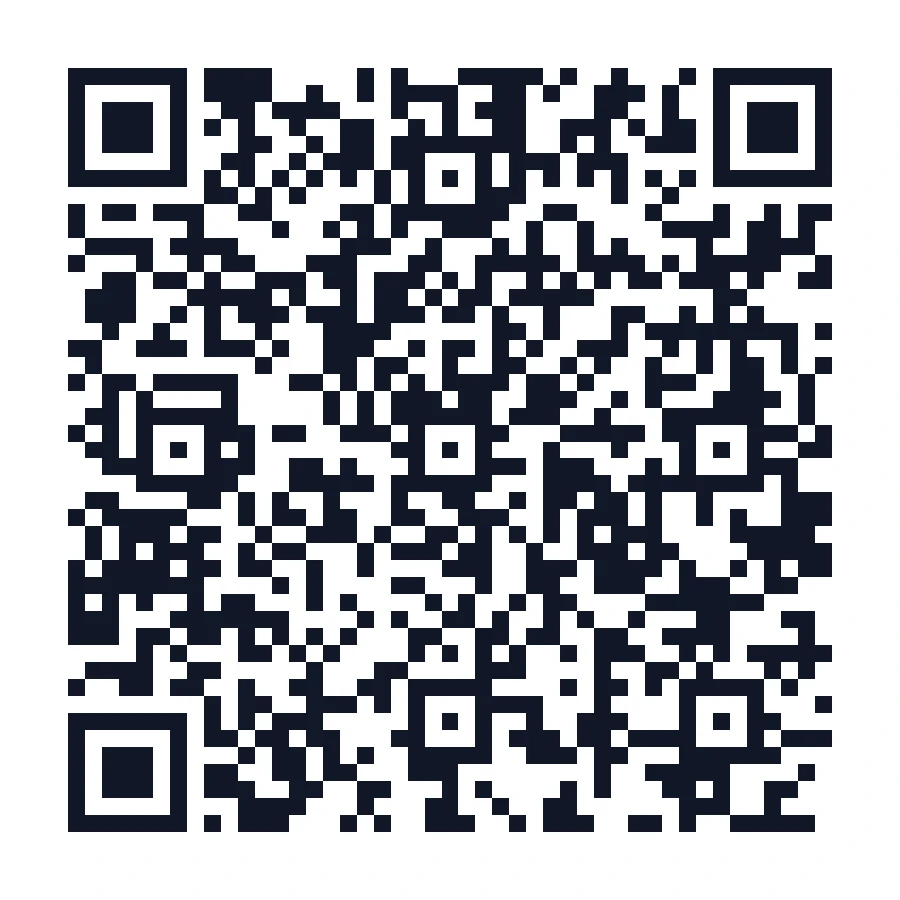
A contact with name, phone, email and company. Scanner-checked.

III

How it works

  1. 01

    Fill in the contact

    First and last name, company, title, phone, email, website, address — skip whatever you don't need.

  2. 02

    Style it

    Brand colour, logo, a frame with a caption.

  3. 03

    Download

    PNG for screens, SVG and PDF for print.

IV

Good to know

Fewer fields, simpler code

Every field makes the code denser. For a small card, keep the essentials.

Works offline

The contact is in the code, so it saves even without an internet connection.

Free, no watermark

No sign-up, no limit on how many you make, and no logo of ours on the result.

V

FAQ

How do I save a contact from a QR code?+

Point the iPhone or Android camera at it and tap the notification: the contact card opens with a Save button.

How big should it be on a business card?+

At least about 2 × 2 cm (0.8 in). If the code looks dense, drop some fields.

Can I change the details after printing?+

No, the contact is stored in the code. Make a new one for new details.