How to Remove the Background from a Video Without a Green Screen
Filmed something at home and hate the background? AI cuts the person out of every frame and puts them on a green screen, a blur, your own picture or a brand-new scene. Here are real results and every setting explained.
Contents
Removing the background from a photo is a one-click job in almost any editor these days. Video is harder: the subject has to be separated from the background in every single frame, hair and moving hands included. That used to mean hanging a green sheet behind you or rotoscoping by hand for hours. On ImageGPT you upload a clip of up to a minute and let the AI do it.
The Remove Video Background tool cuts out whoever is in the shot and drops them onto a new background. The audio stays exactly as it was, and every result also comes as a transparent WebM you can layer over other footage or a slide.
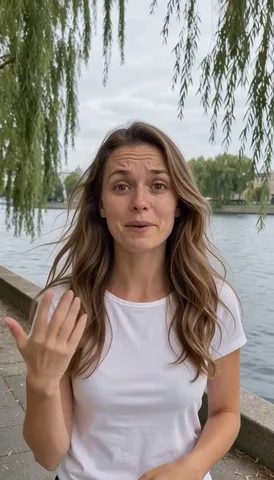
One clip, three backgrounds
The source is a 6-second vertical clip of a woman talking by the river. Both the clip and the woman were generated by AI.
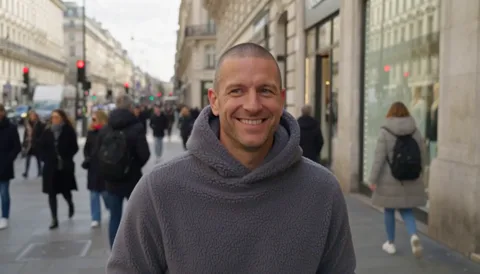
If you edit your own videos, you'll usually want a green screen — a flat chroma-key background that any editor removes in one click. Here's a horizontal clip of a man walking towards the camera (also AI-generated), now walking on green.
What you need
- A clip between 1 and 60 seconds, up to 70 MB, in any common format. Cut longer videos into parts first.
- Good light and contrast. The more the subject stands out from what's behind them, the cleaner the edges — a white shirt against a white wall is the hardest case.
- For your own background, a picture in roughly the right shape. It gets cropped to the frame, so use a vertical image for vertical video.
Step by step
- Open Remove Video Background under Video and upload your clip.
- If the subject isn't a person — a product, a pet, an object — switch off “There is a person in the shot”, so the AI cuts out the main object instead of looking for people.
- Under New background, pick Green screen, Colour, Blur, My picture or Generate.
- For Colour, choose white, black, light grey, blue, amber, pink or a Custom colour. For My picture, upload it. For Generate, write what you want in “Describe the background”.
- Check the price under the button and click Remove background. The clip is processed frame by frame.
- Download the MP4 with its new background, or click Download transparent WebM if you need an alpha channel.
Which background to choose
| Mode | Best for |
|---|---|
| Green screen | You'll finish the video in CapCut, Premiere or DaVinci Resolve and pick the background there |
| Colour | A white background for a product shot, a plain one for a tutorial |
| Blur | The background is fine but distracting: a messy room, people walking past |
| My picture | You have a photo of your studio, office or a branded backdrop |
| Generate | You need a place you don't have: a studio, a home office, a beach, a city skyline |
The transparent WebM comes with every result, whatever mode you choose. Modern browsers and editors that support alpha can use it directly — handy for putting a speaker on top of slides or a web page.
Prompts for an AI background
Generate mode draws the scene with GPT Image 2.5. Describe the place and the light, not the person — they're already cut out. A few that work well behind a talking head:
A bright white studio with large potted plants and soft daylight from a window
A modern office with floor-to-ceiling windows, city lights softly blurred at dusk
A cosy coffee shop with wooden tables, warm pendant lamps and a shelf of mugs in the background
Pricing
The price depends only on the length of the clip and is shown before you start. An AI-generated background adds a few credits; every other mode costs the same. If processing fails, the credits go back to your balance.
| Clip | Credits |
|---|---|
| 10 seconds | 27 |
| 10 seconds with an AI background | 32 |
| 30 seconds | 77 |
| 1 minute | 151 |
Upload a clip of up to a minute and give it a new background: green, blurred, your own or painted by AI.
Remove video backgroundTry everything from this article in minutes
All the models and tools from this article are in one place. You get 6 free credits after sign-up, and every price is shown before you run it.
Remove video background