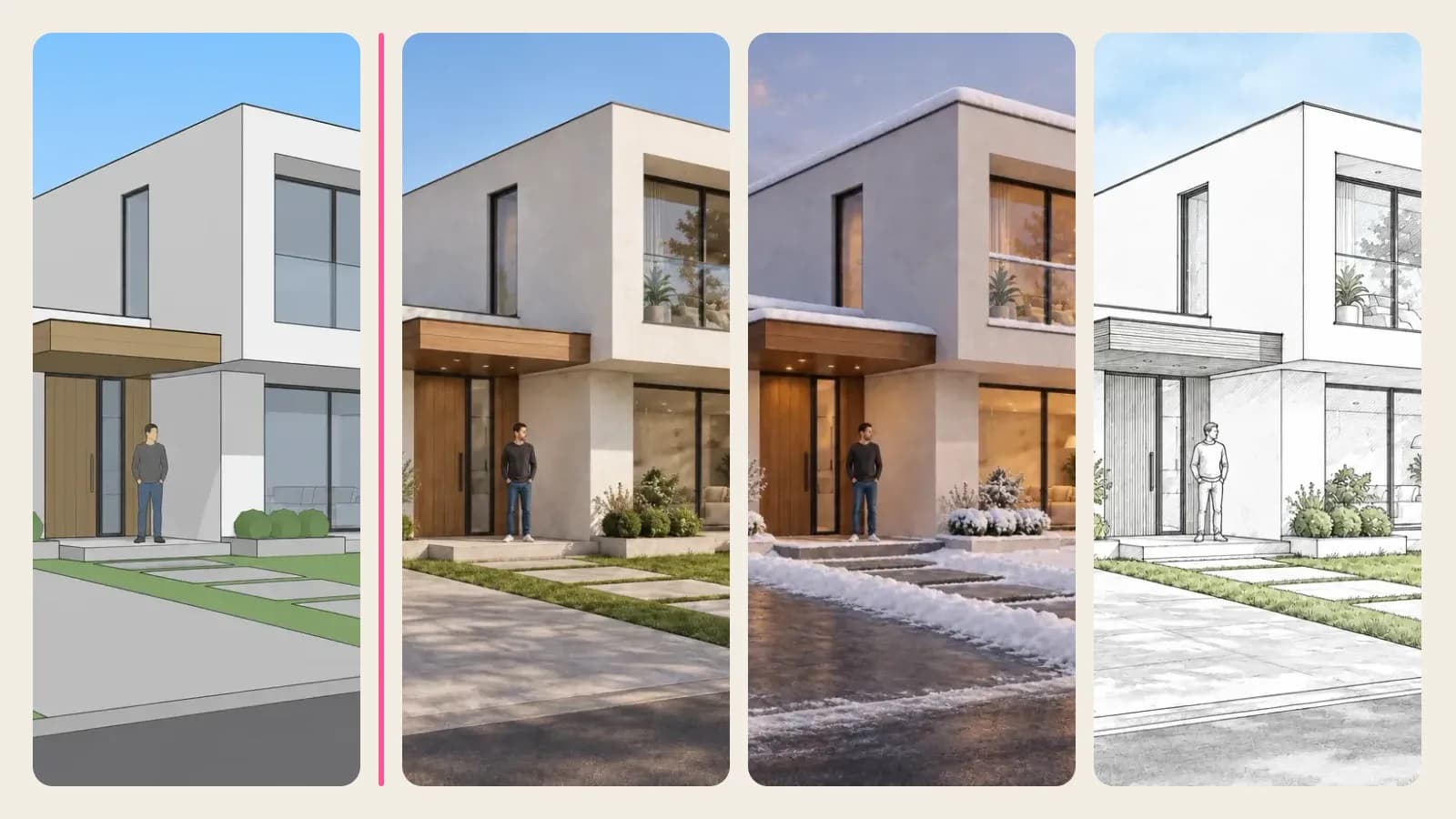
Add People, Cars and Lit Windows to an Architectural Render With AI, Without Touching the Building
Entourage that is pasted into your render instead of redrawing it: the facade stays exact, a brush limits where people go, fixes are typed in plain words and the additions export as a Photoshop layer.
Contents
An empty street makes a render look like a model, and placing cut-out people and cars by hand eats an hour per view. Image models can populate a scene in a minute, but a plain AI edit redraws the whole frame: verticals drift, the pavement turns into a lawn, the brick bond changes and cars appear with their headlights on at noon. None of that can go to a client.
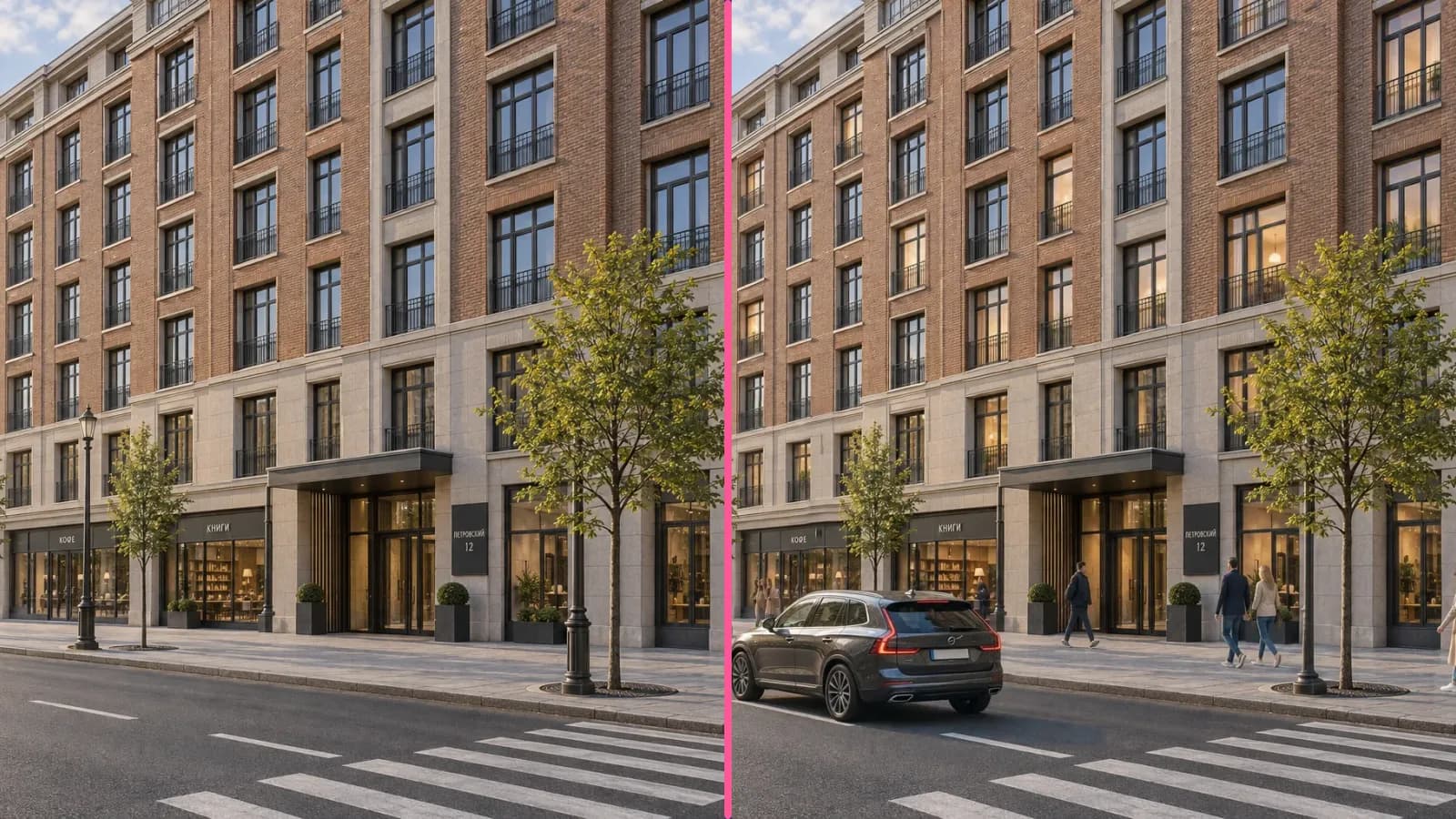
The Entourage mode of Architectural Visualization in ImageGPT works differently. The model adds people, cars and light, then its output is lined up with your file and only what it added is pasted in. Everything else comes from your render pixel for pixel, at its own resolution — up to 3840 px on the long side.
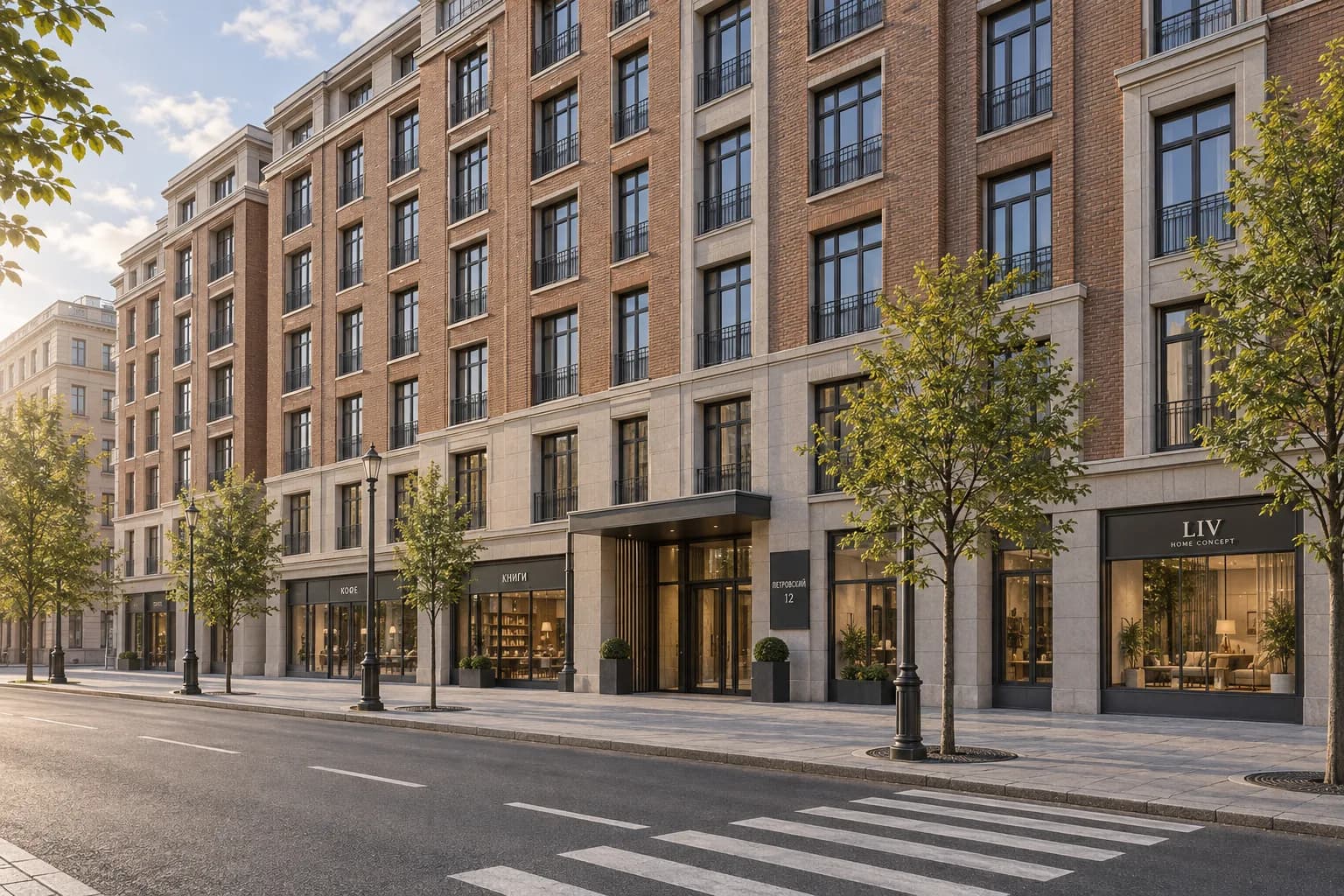
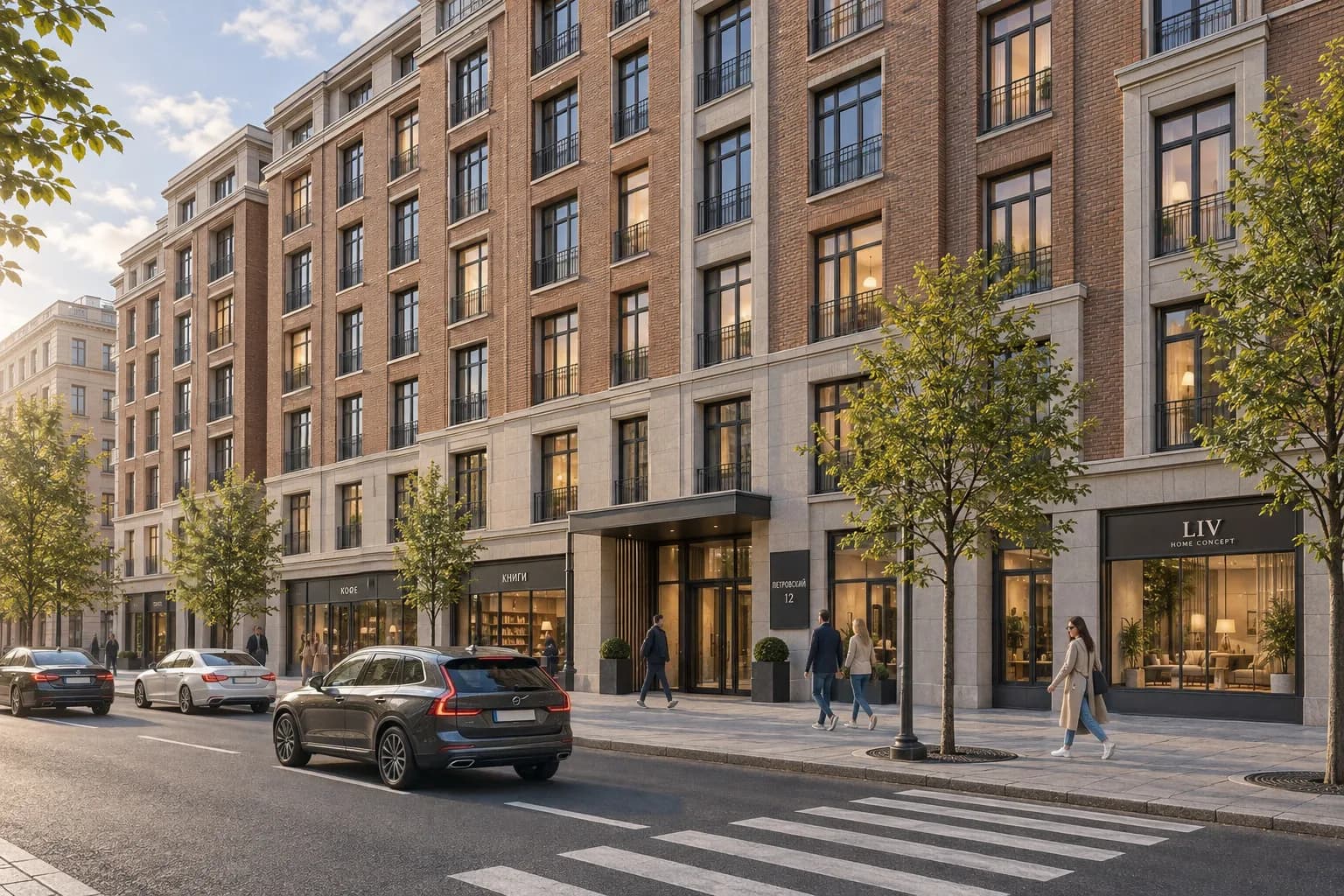
Every result in this article was made with the tool. We generated the source render too, so we are not showing anyone's real project.
What you need
- A finished render or a photo of the site without people — JPG, PNG or WebP. No need to downsize: the result comes back at the same size, up to 3840 px.
- A sense of where people belong in the frame. If only one area is pedestrian, mark it with the brush.
- Several views of one project? Upload up to 30 and run them as a series with the same settings.
Step by step
- Open Render Entourage and upload your image.
- Tick what to add: passers-by, families, cars, bicycles, dogs, a street cafe, some lit windows, new greenery — or Refresh greenery, which makes the existing trees and lawns lusher without planting new ones.
- Pick a model. Standard suits most views; the differences are below.
- Keep the building untouched stays on. Turn it off and you get the model's whole picture back, redraws included.
- If people belong only in part of the frame, switch on Brush where to change and paint over the pavement or courtyard.
- Optionally describe the season, clothing or who stands where, then generate. The result takes about a minute.
The instructions sent to the model cover the usual complaints from visualizers: cars only on the roadway or in parking, with headlights off in daylight; people whole, at the scene's scale and in its perspective; no new street lamps, benches or trees unless you ask; and no change to the light, sky or grading. Models still slip now and then, which is what the brush and fixes are for.
The brush: where changes are allowed
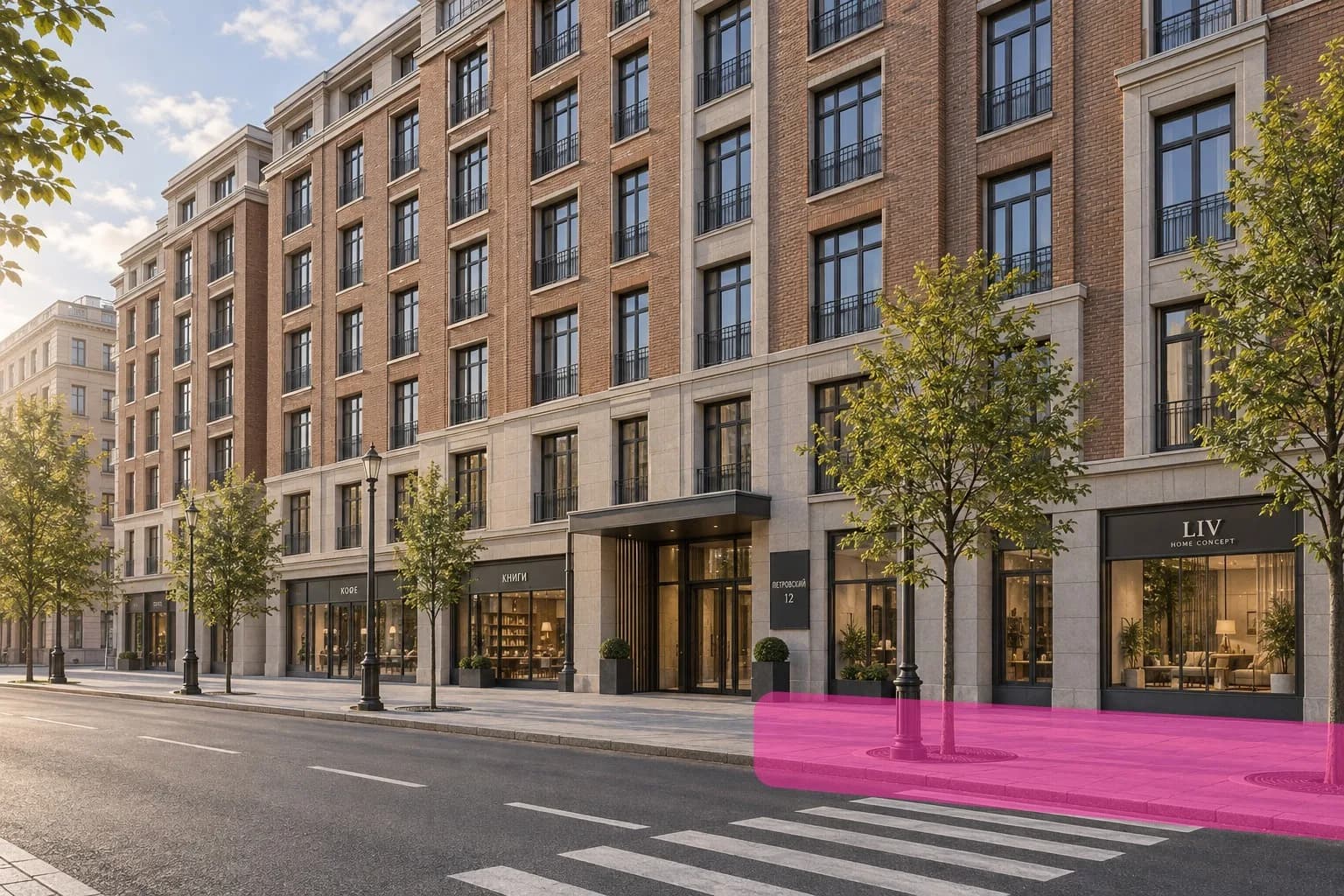
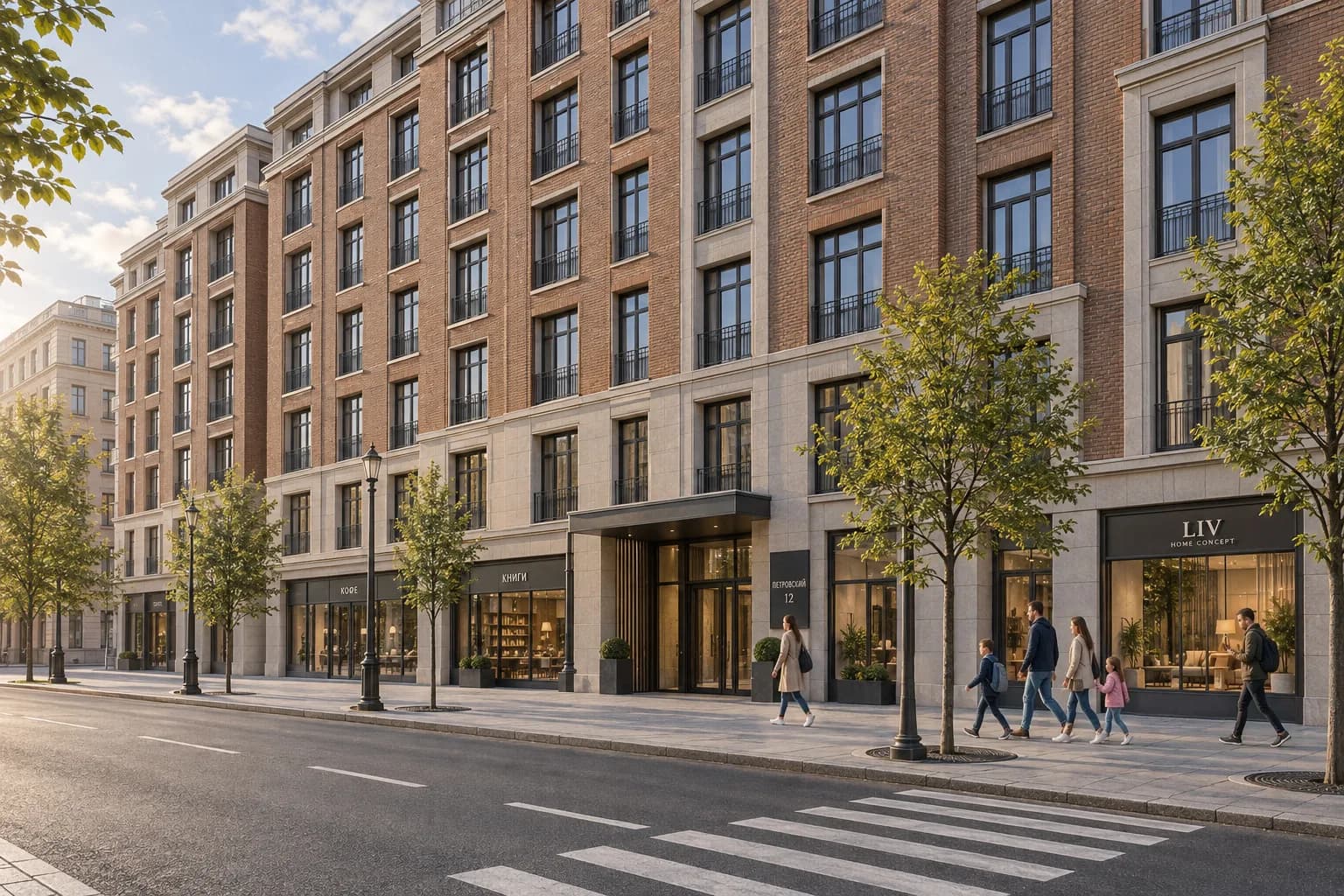
Paint an area — the pavement by the entrance, a courtyard, a car park — and only what the model places there makes it into the result. A person standing on the painted pavement is kept whole, even when their head rises above your stroke. Anything the model drew elsewhere is dropped.
Fix a finished image in plain words
A car parked in the wrong place, an awkward pose, nobody at the entrance — no need to start over. Hover over the result and click Fix: it becomes the source, and you type what to change. Everything else stays. You can paint the spot with the brush and chain fixes one after another.
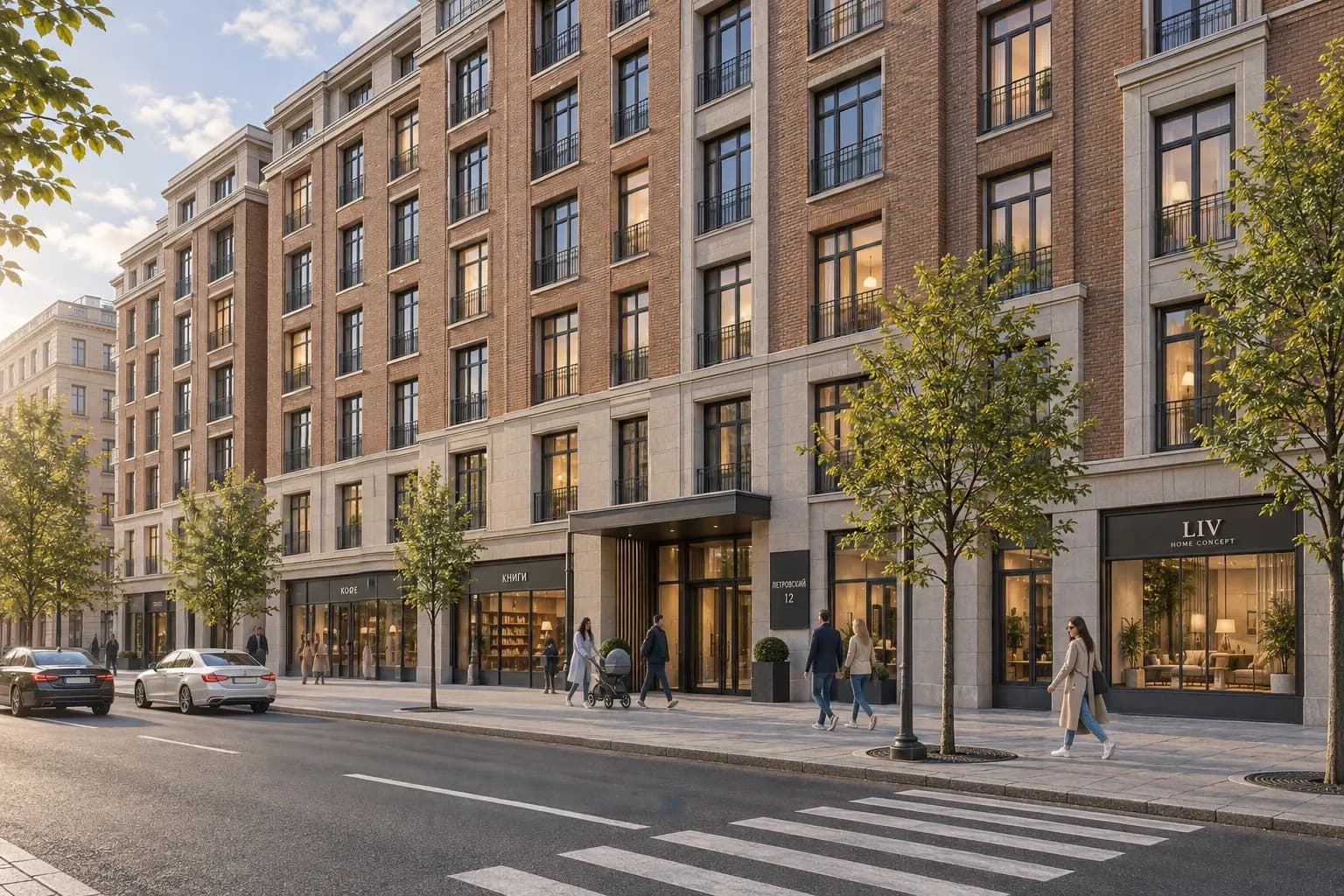
Requests we tested
Write the way you would brief a visualizer. Both requests below were checked for this article; the tool reads them in any language.
Early autumn: light jackets and trench coats. A couple with a dog by the furniture shop window, a cyclist at the crossing
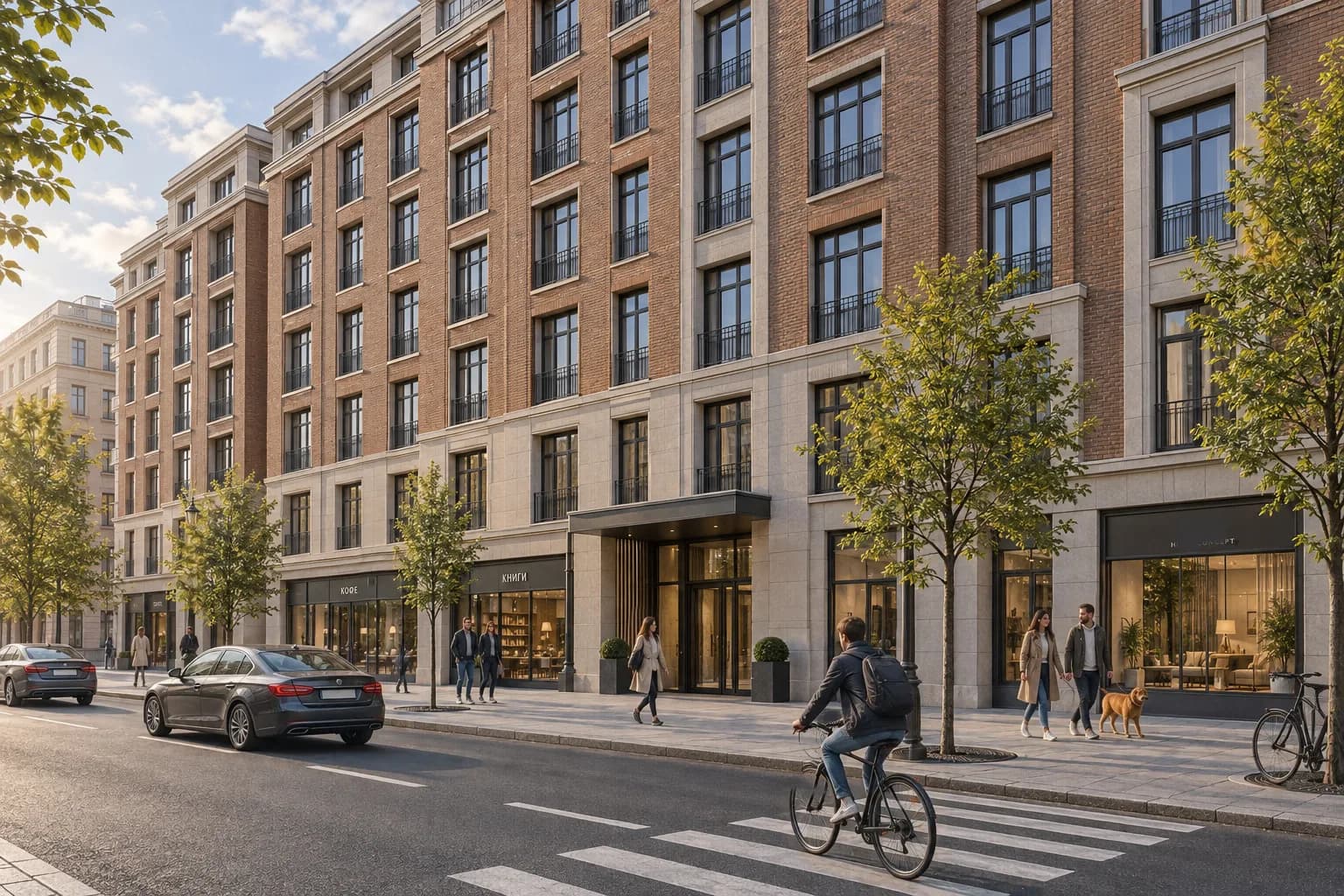
Remove the grey car in the left foreground and leave an empty road there. Add a woman with a pram by the entrance
That is the fix from the example above. Name the object by colour and place in the frame — the grey car on the left, the man at the entrance — so the model leaves its neighbours alone.
A PNG layer for Photoshop
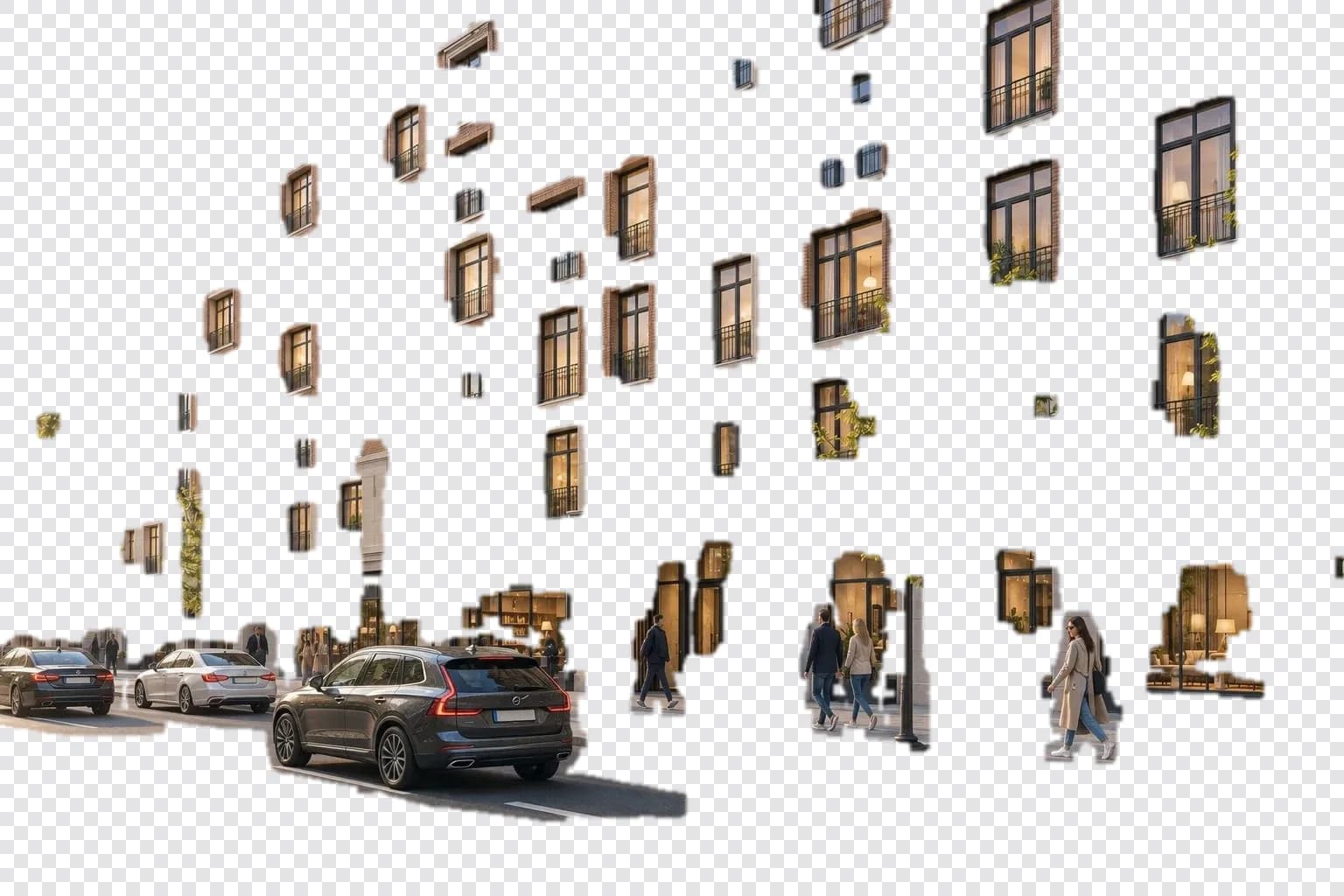
If you finish images in Photoshop anyway, click PNG layer on the result. You get a file at the source's size with only the additions on a transparent background: people, cars, lit windows. Drop it over your render and it lines up to the pixel. Erase what you don't want; the facade stays in your own layers. Building the layer is free.
Which model to choose
- Standard — GPT Image 2.5. The most careful about keeping people on the pavement and cars on the road. Right for most views.
- High quality — the same model at its top setting, with more detailed faces, poses and cars. Worth it for close-ups where people are near the camera.
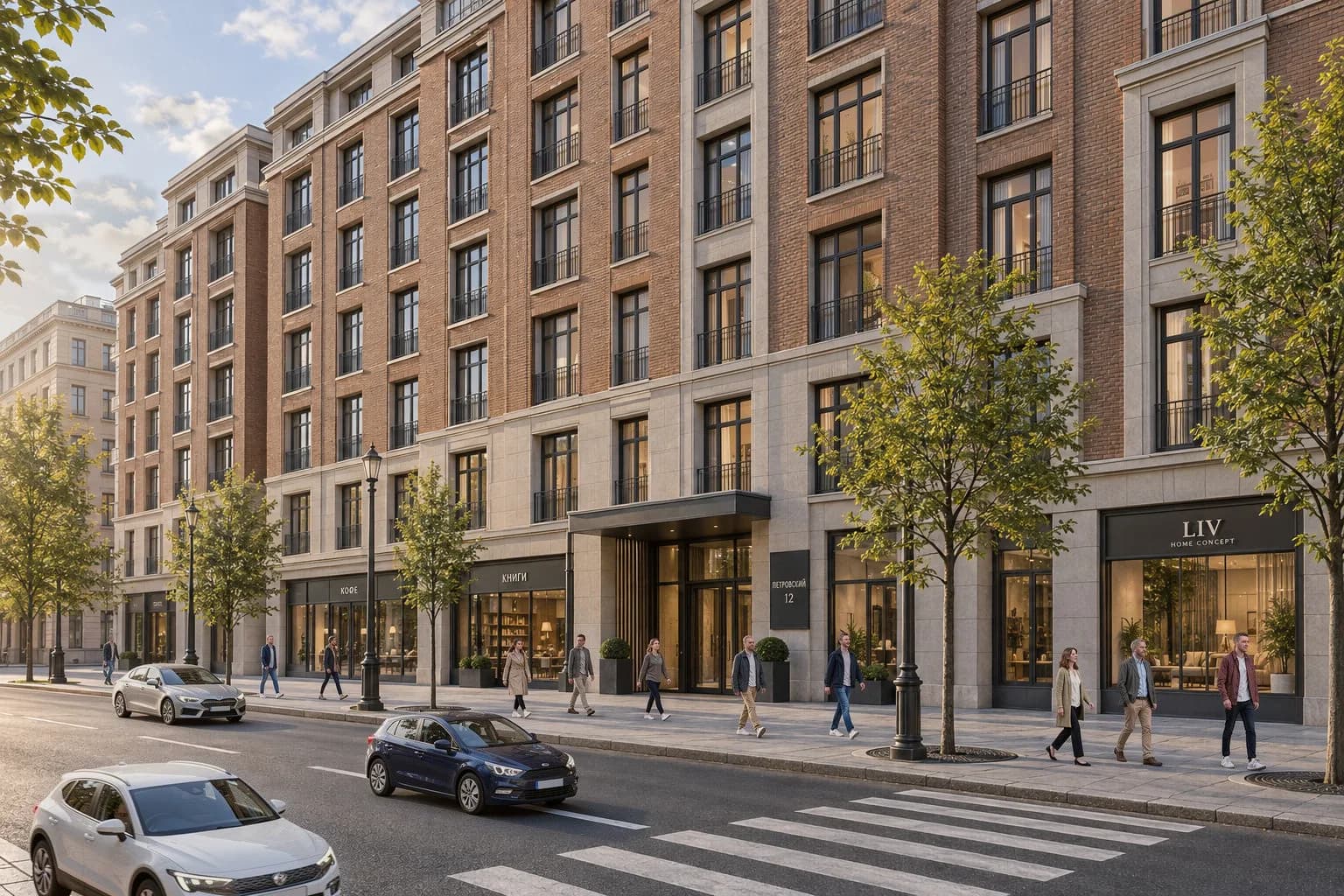
- Fewest changes — FLUX 3. Adds the least and is the least likely to touch what you didn't ask for. Good when the scene already has entourage and only needs topping up.
Pricing
| What | Per image |
|---|---|
| Standard | 6 credits |
| High quality | 24 credits |
| Fewest changes | 26 credits |
| 4K delivery | +2 credits |
| Fixing a finished image | the same as a run on the chosen model |
| PNG layer | free |
If an image fails, its credits are refunded. New accounts get 6 free credits — enough to try the mode on your own render.
Upload a render without people: entourage in about a minute, and the building stays yours.
Add entourageTry everything from this article in minutes
All the models and tools from this article are in one place. You get 6 free credits after sign-up, and every price is shown before you run it.
Add entourage