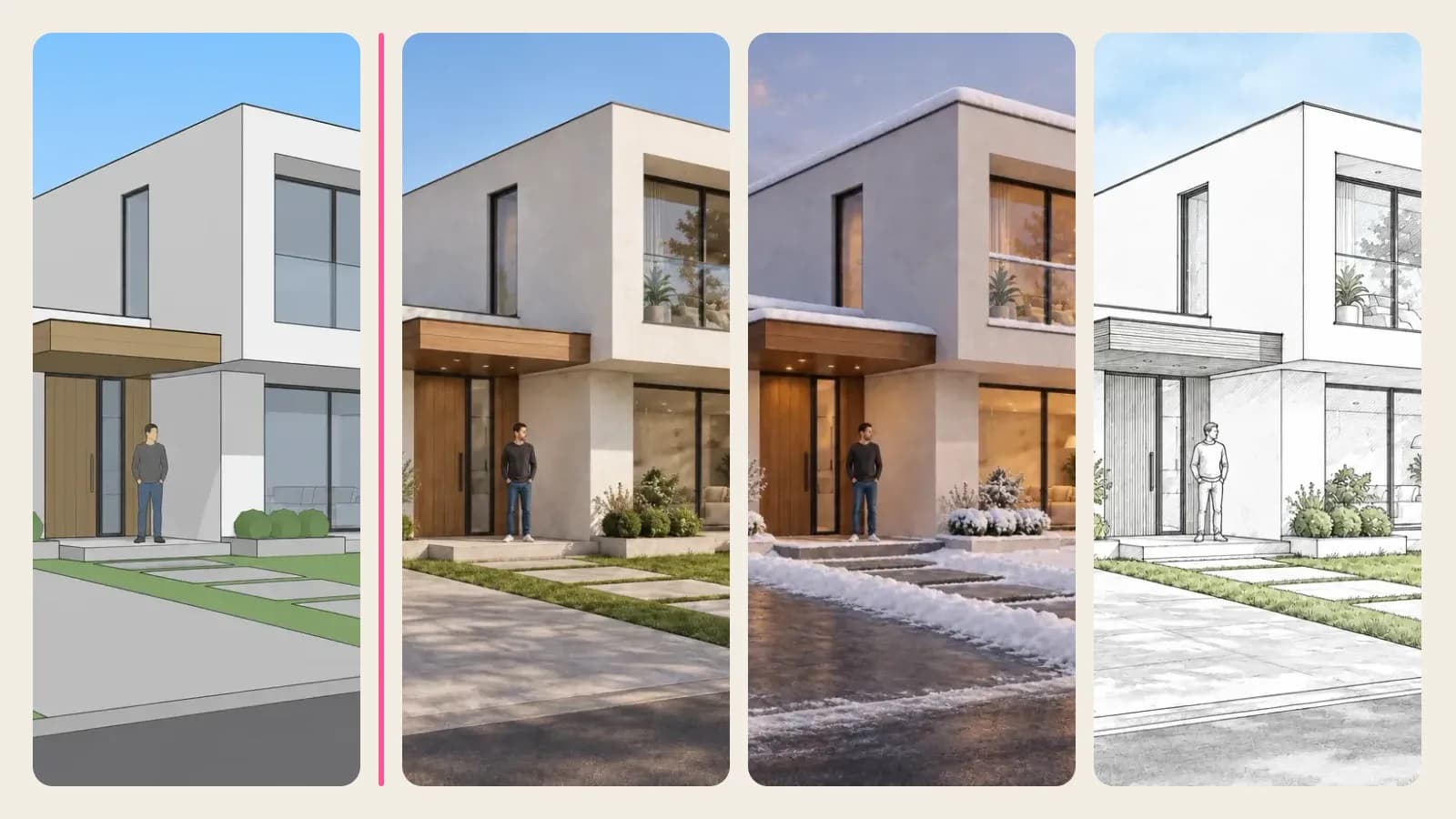
ImageGPT Tools by Profession: Tabs for Architects, Realtors, Sellers and More
The tool list now has tabs for architects, realtors, builders, sellers and six more trades, and the big multi-mode tools are split into 27 single-task ones. Here's where to find them and how to tidy up the list.
Contents
ImageGPT has well over a hundred tools, and no one needs all of them. An architect has no use for a Telegram sticker maker; a listing agent doesn't need a cross-stitch pattern. So the tool list now has profession tabs. Pick your trade and you see only the tools you use at work, roughly in the order you reach for them.
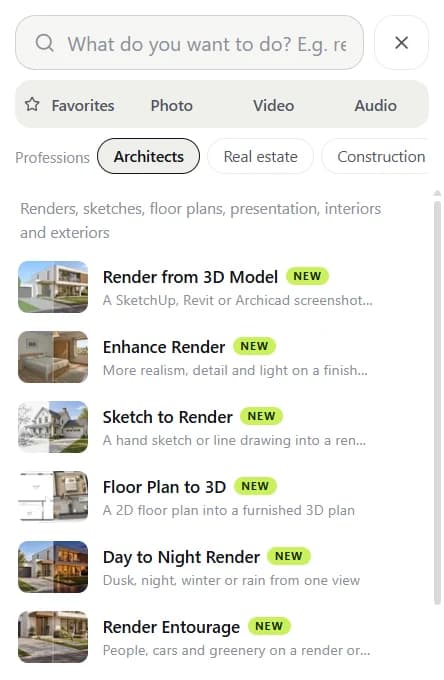
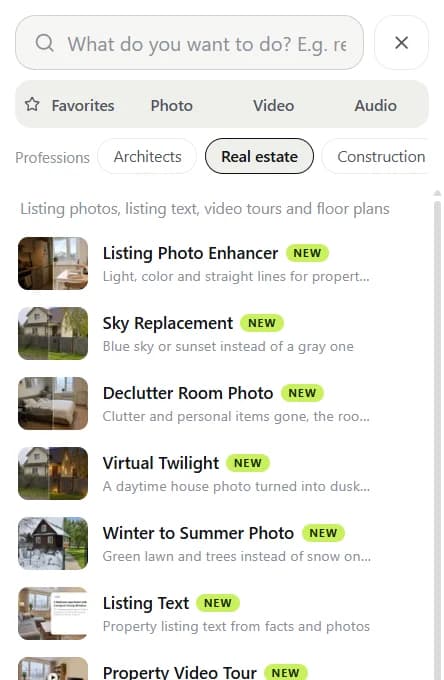

The other change is inside the tools. Architectural Visualization, Listing Photos, the building materials visualizer and Product Photos used to be big forms with a mode switch at the top. Each mode is now a tool of its own, with its own page, its own hints and only the settings that job needs — 27 of them in total. The original multi-mode forms are still there if you prefer them.
The ten tabs
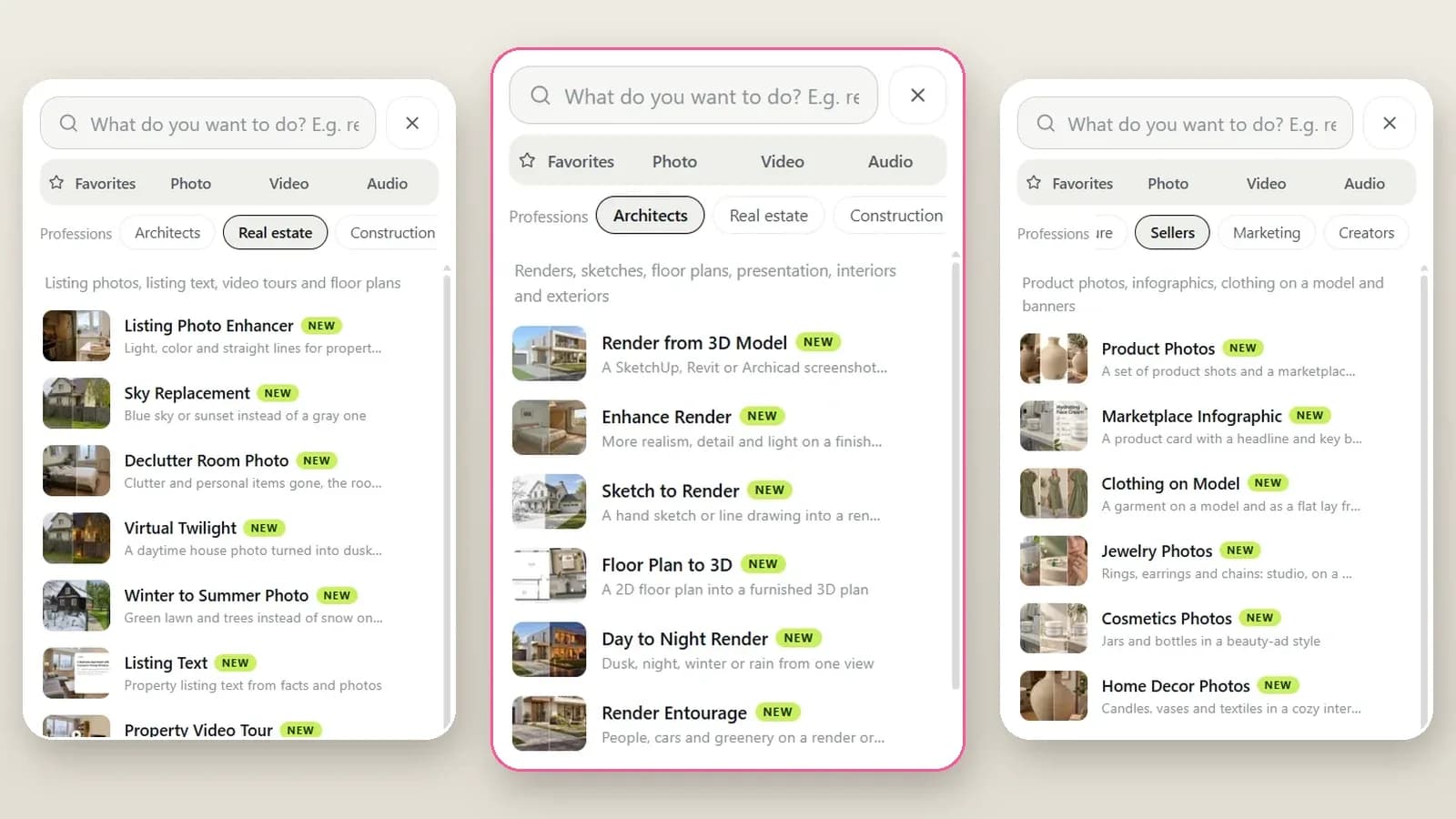
- Architects — Render from 3D Model, Enhance Render, Sketch to Render, Floor Plan to 3D, Day to Night Render, Render Entourage, Building Photomontage, Construction Site to Building, Architectural Presentation and Furniture Rendering, plus interior and exterior design.
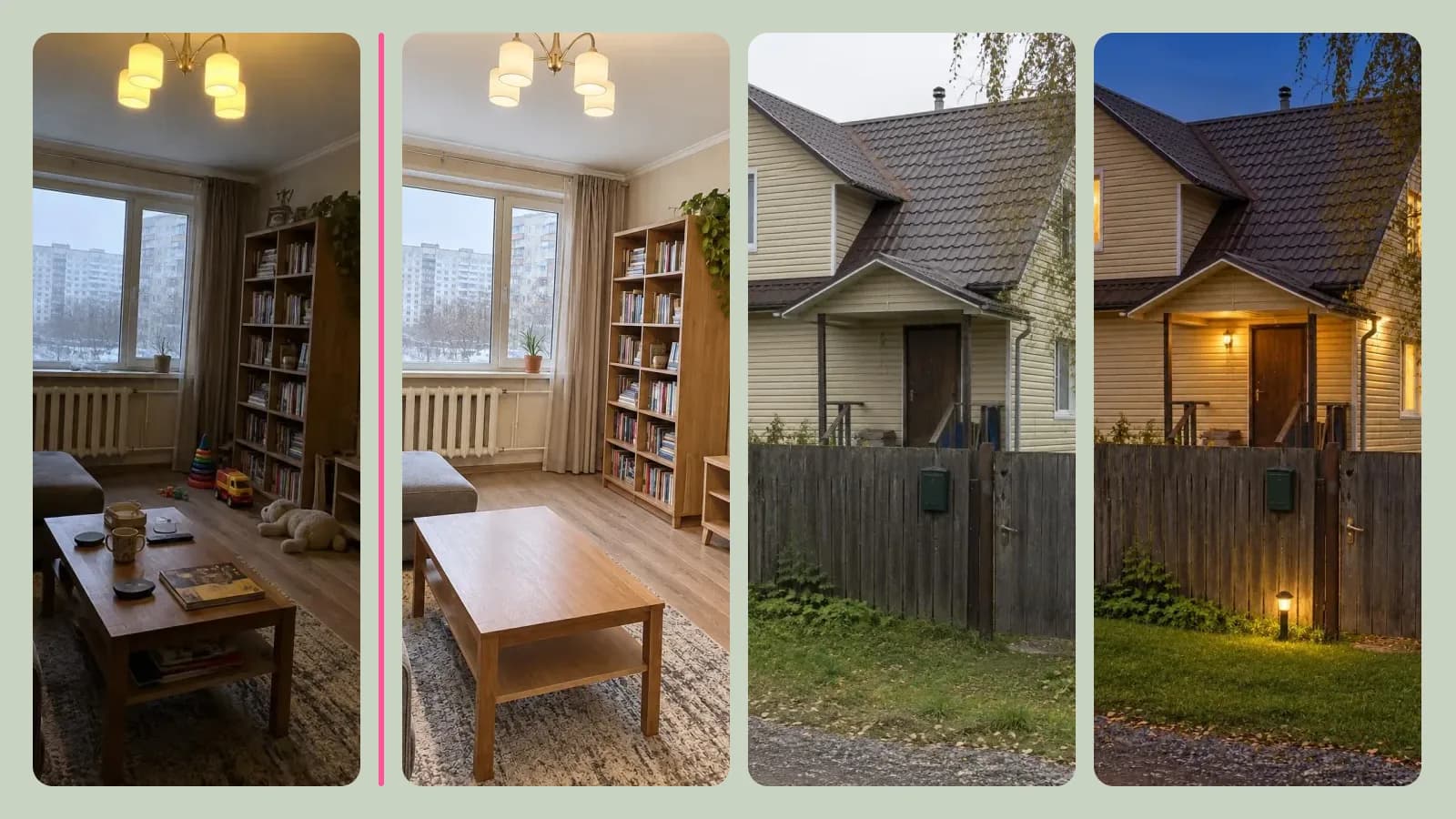
- Real estate — Listing Photo Enhancer, Sky Replacement, Declutter Room Photo, Virtual Twilight, Winter to Summer Photo, Listing Text and Property Video Tour.
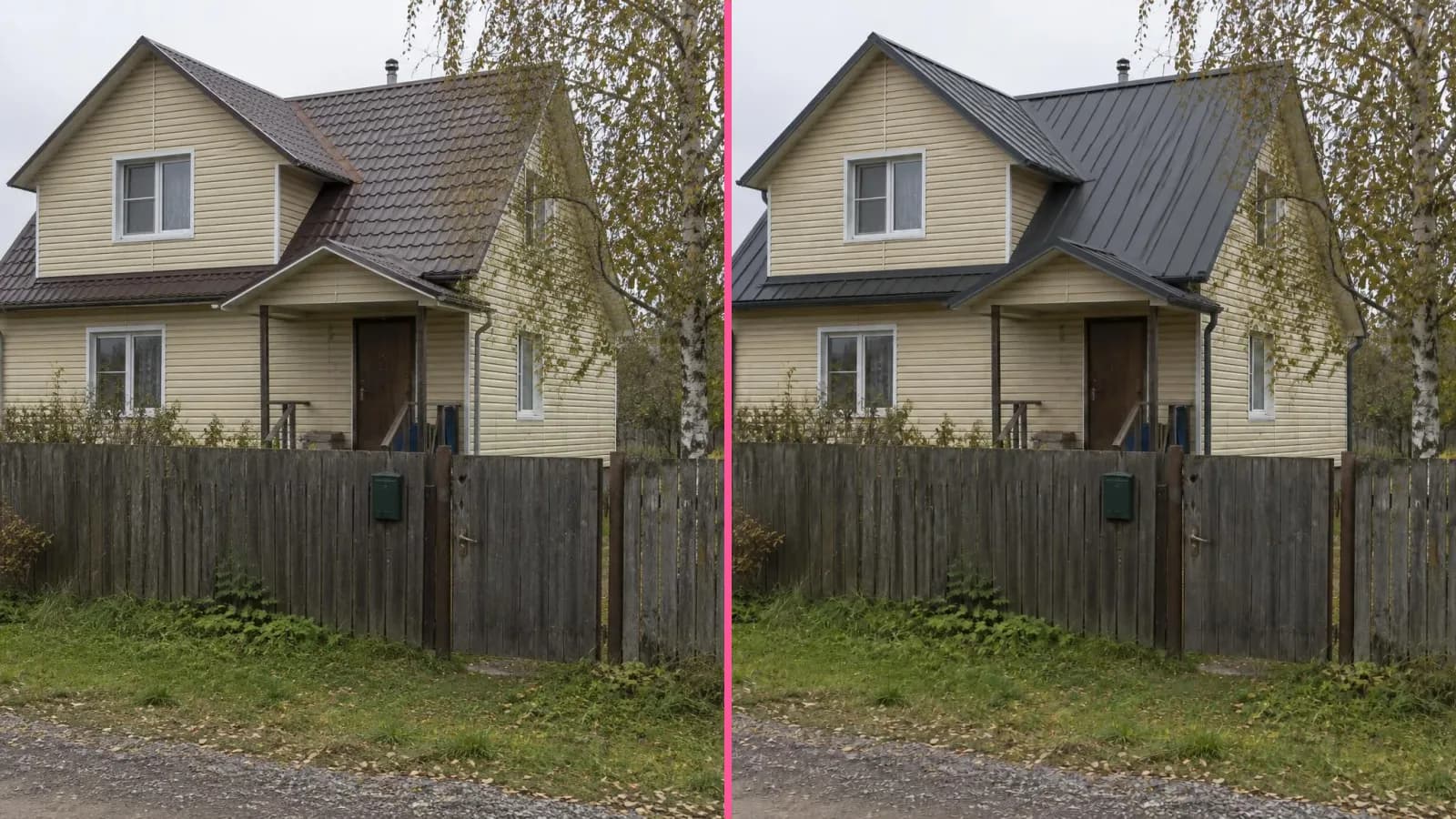
- Construction — window, front door, fence, roof, siding and paver visualizers that work on a photo of the client's house.
- Furniture — kitchen and wardrobe renders from a model or sketch, furniture placed in the client's room, and ad photos.
- Sellers — product photos, marketplace infographics, clothing on a model, and dedicated tools for jewelry, cosmetics, home decor and bouquets.
- Marketing, Creators, Education, Beauty and Photographers — tools ImageGPT already had, grouped around those jobs: banners and logos, clips and auto-captions, presentations and homework help, nail and hairstyle try-ons, retouching and photo restoration.
A tool can sit in more than one tab. Floor Plan to 3D is useful to both architects and agents; Banners shows up for sellers, marketers and window companies alike. The Photo, Video and Audio tabs with every tool are unchanged.
How to find your tab
- Open All tools — it's in the left sidebar on desktop and behind the menu button on a phone.
- Under the Favorites · Photo · Video · Audio switch there's a Professions row. Tap yours, for example Real estate.
- Open a tool. The form is built for one job: Roof Color Visualizer asks for a house photo where the roof is clearly visible, offers RAL colors and five roof types, and the button says Show on the house.
- Star the tools you use every day from the “⋯” menu in the list. They'll be waiting under Favorites.
How to hide the tabs you don't need
Once you're signed in, a settings button appears at the end of the Professions row; on desktop the same switches are also under Settings → Tools. Untick the trades you don't work in and close the panel. The choice is saved to your account, so it follows you to another browser. Hidden tools aren't switched off: search still finds every one of them, so you can type “change the windows on a house photo” or “dusk photo of a house” and go straight there.
Why single-task tools are easier
A focused tool has less to get wrong. Virtual Twilight has exactly one option — whether to green up the lawn. Upload a daytime exterior and you get blue hour with warm light in every window. Each tool also has its own address, so you can bookmark it or send a colleague a link that opens the right job.
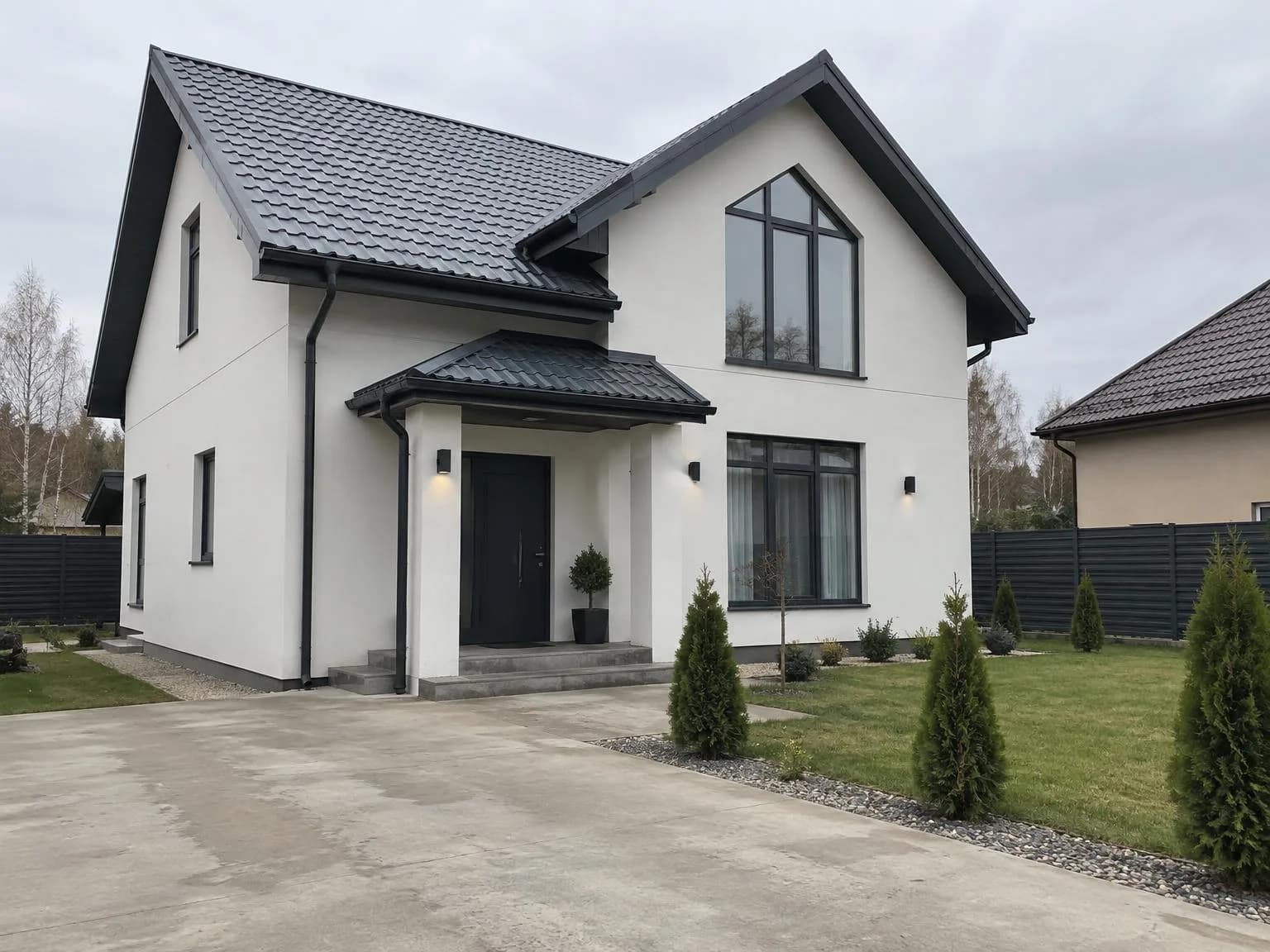
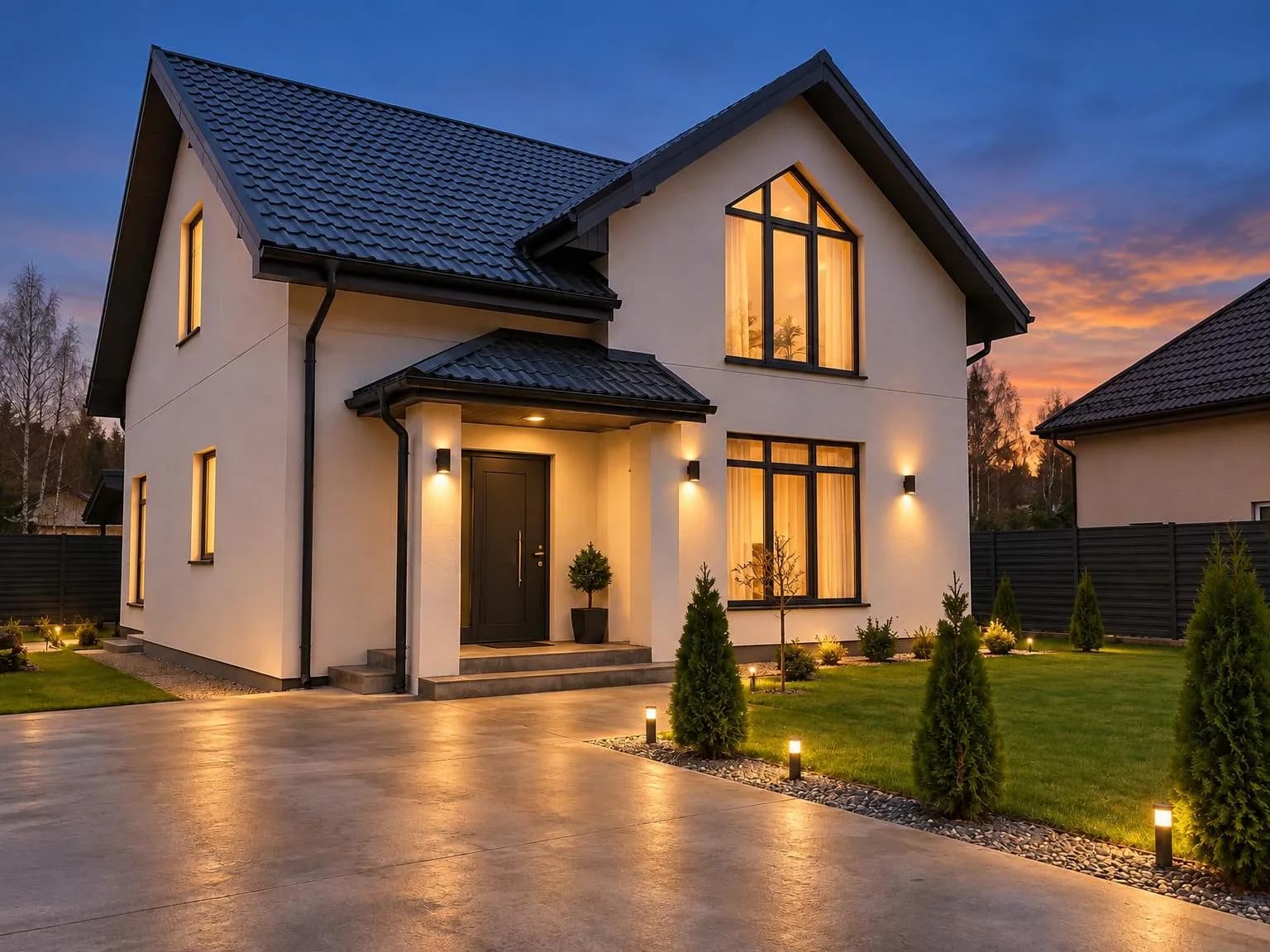
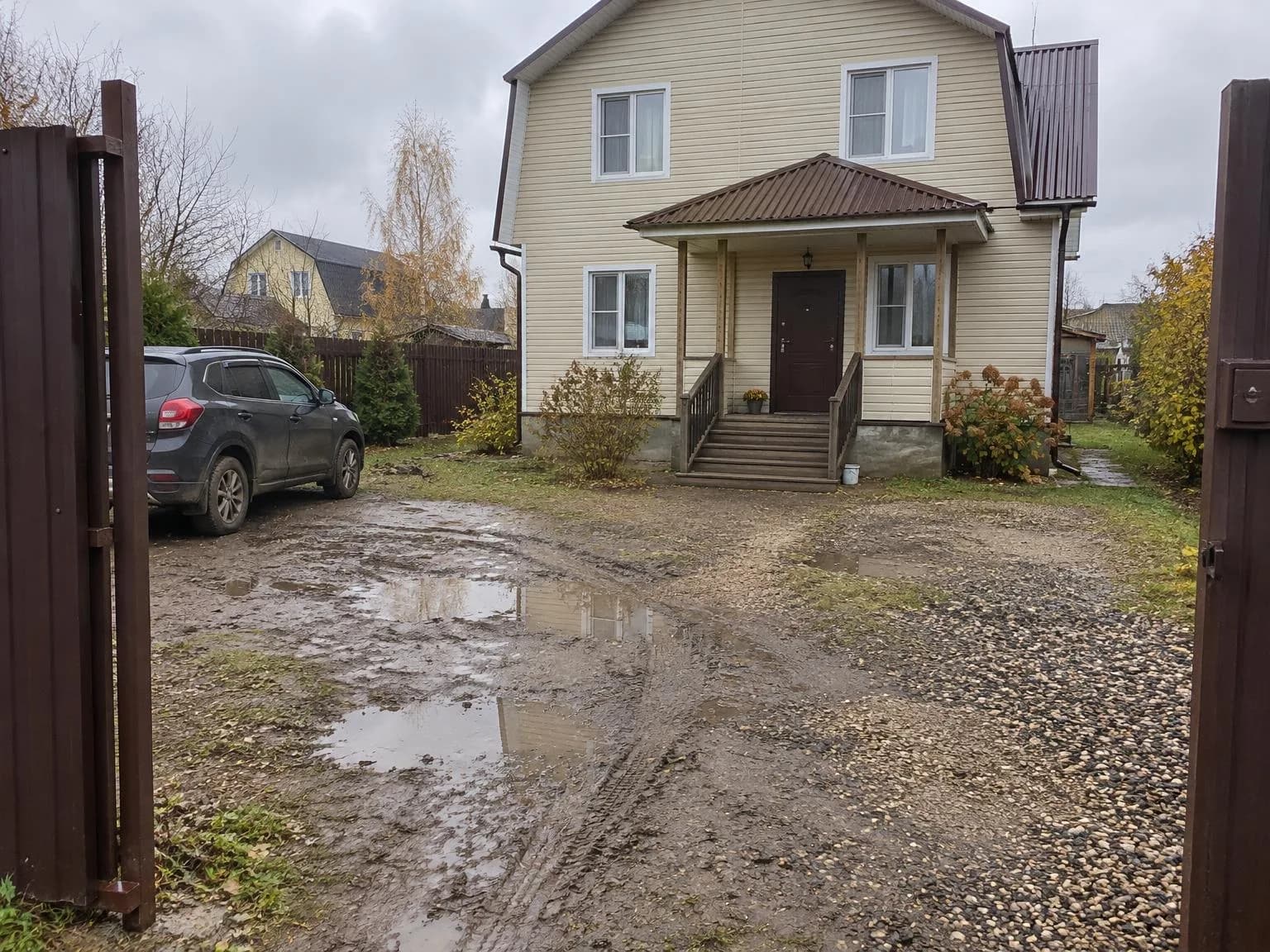
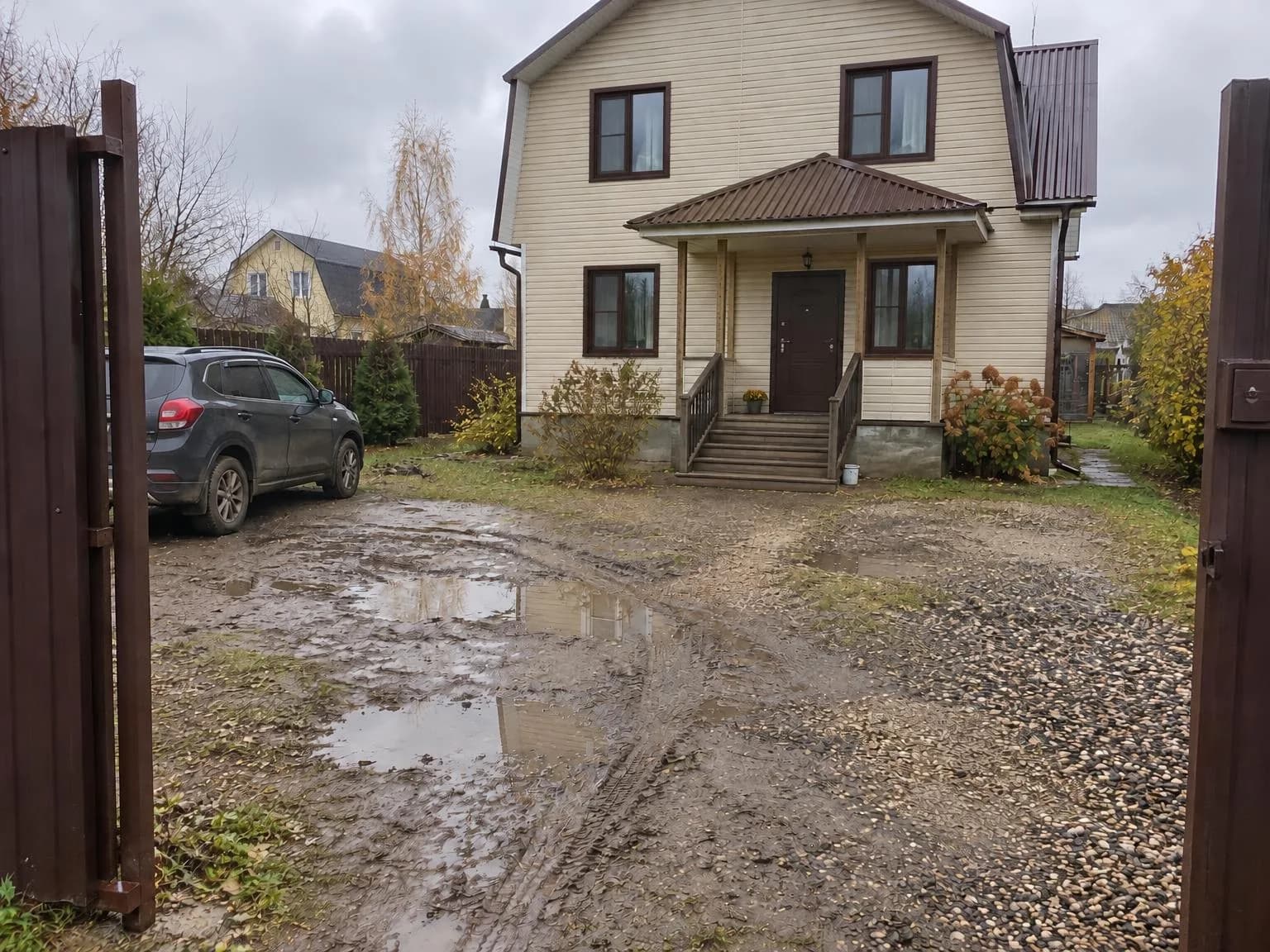
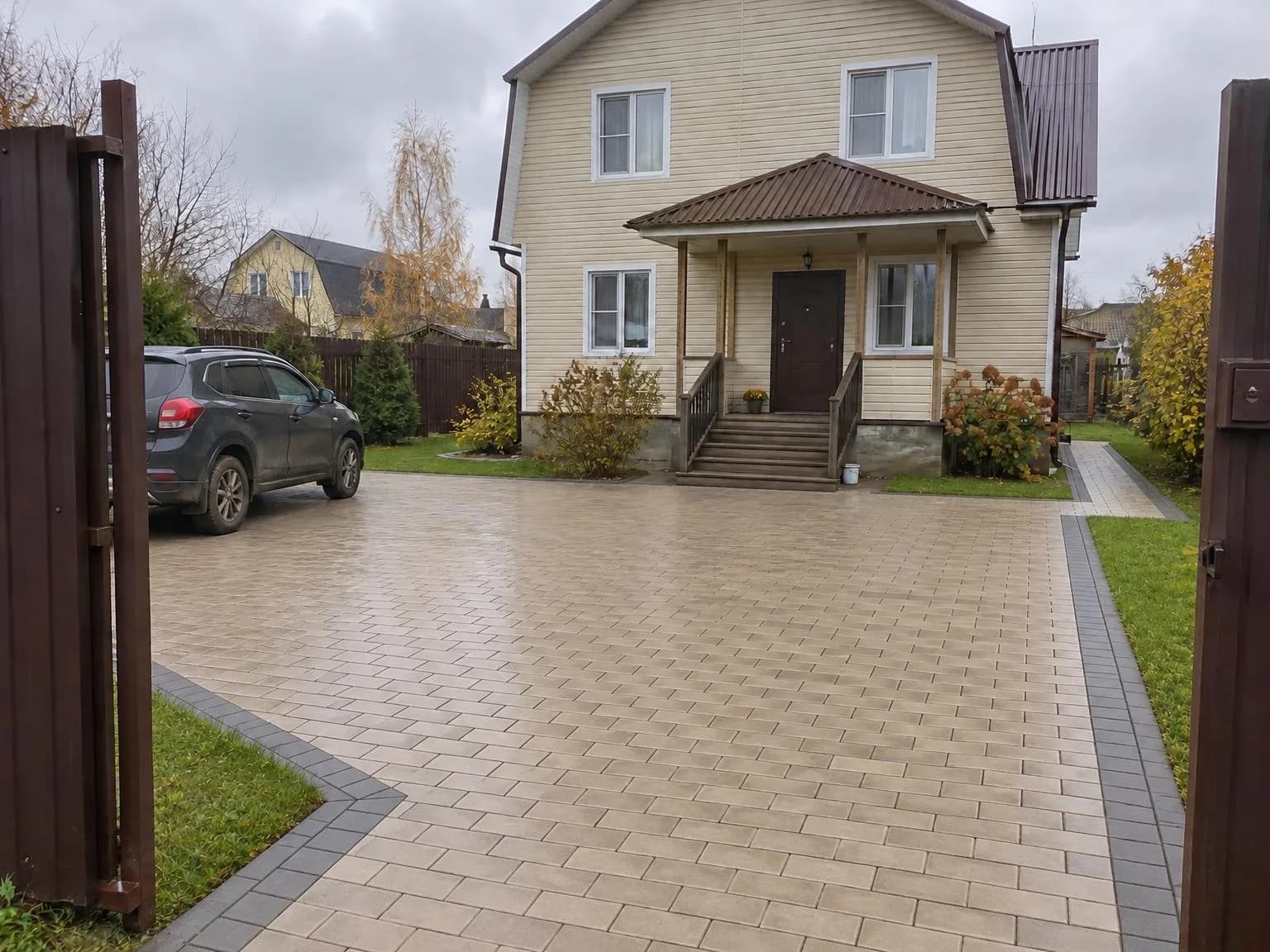

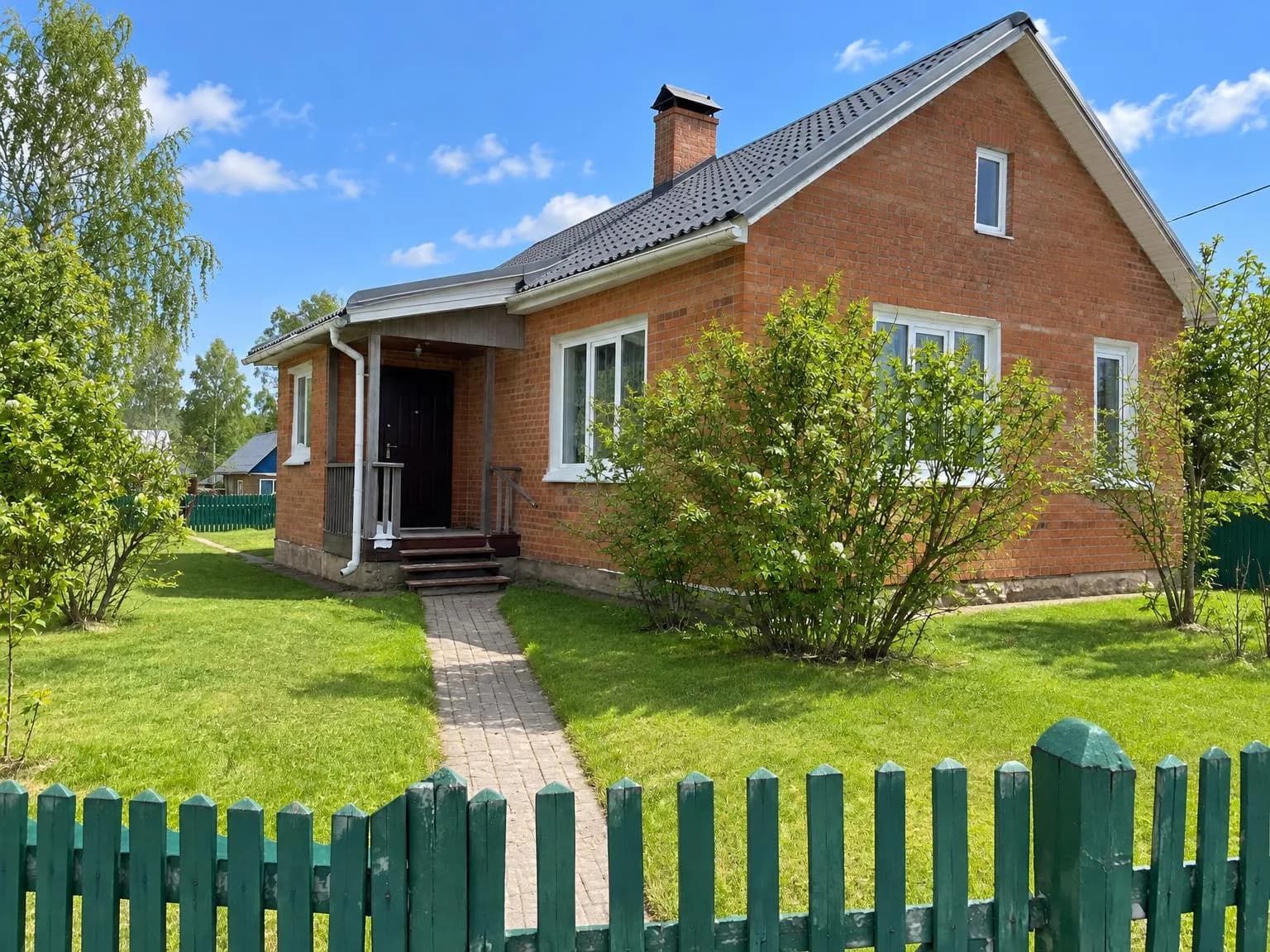
Every result in this post was made with these tools. We generated the original house photos so as not to show anyone's real property.
Notes that work
The notes field is optional in every single-task tool. These are the exact notes behind the examples here, and they're a good pattern to copy: say what the thing is made of, its color and the one detail that matters.
Beige brick-style pavers with a grey kerb, lawn along the edges
Insulated steel door with a wood-grain finish and a long vertical bar handle
Matte finish, gutters in the roof color

What it costs
Prices are the same as in the multi-mode tools the new ones came from, and the cost is shown on the button before you start.
| What | Price |
|---|---|
| One image in the architecture, listing photo, building materials and product tools | 6 credits |
| A batch: one setting across 30 photos (architecture, listing photos, building materials) | 180 credits |
| 4K copy | +2 credits per image |
| Listing text | 2 credits |
If an image fails, its credits come back. New accounts get 6 free credits. The tabs and their settings cost nothing.
Open the tool list, pick your trade, and everything you need for the job is on one tab.
Open the tool listTry everything from this article in minutes
All the models and tools from this article are in one place. You get 6 free credits after sign-up, and every price is shown before you run it.
Open the tool list