How to Make a Paint by Numbers Kit from Your Own Photo (Free Pattern + Printable PDF)
We turned a portrait into a 16×20 in paint by numbers pattern, with and without the AI photo prep. Here's what the PDF contains, how to get it onto canvas and which settings to pick.
Contents
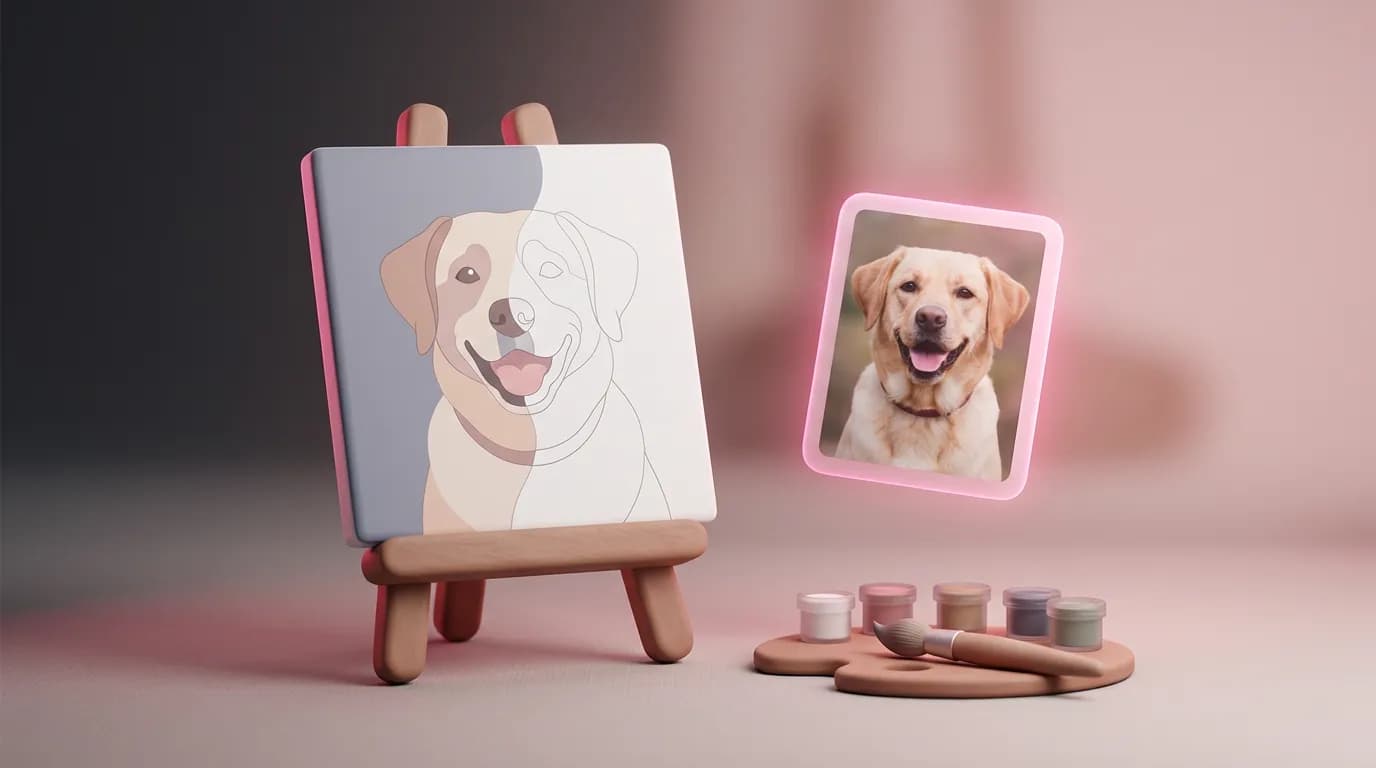
Custom paint by numbers kits of your dog, your parents' wedding photo or that view from the cabin make great gifts, but ordering one means uploading the photo to a shop, paying for a kit and waiting for it to ship. The part that actually makes it yours is the pattern: a numbered outline and a matching palette. ImageGPT builds that pattern from any photo in a few seconds, right in your browser, and it's free. You can rebuild it as often as you like until it looks right, then take it to a print shop or print it at home.
For this walkthrough we used an AI-generated portrait of a man in an autumn park (no real person) and made a 16 × 20 in pattern with 24 colors at medium detail. It came out at 1,010 numbered areas.
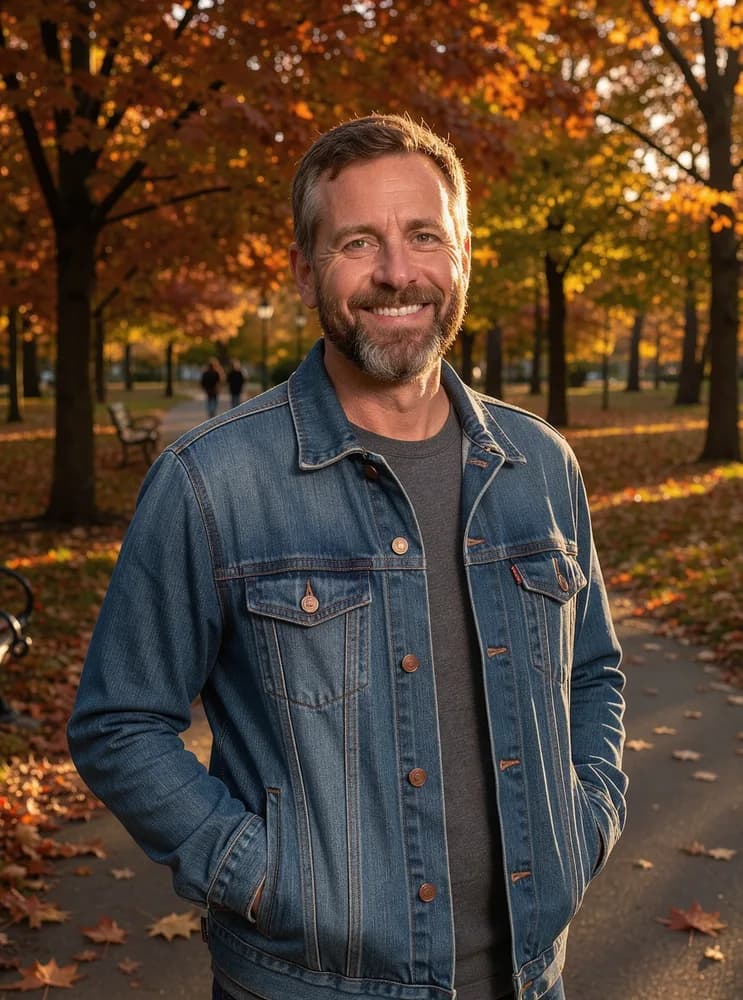
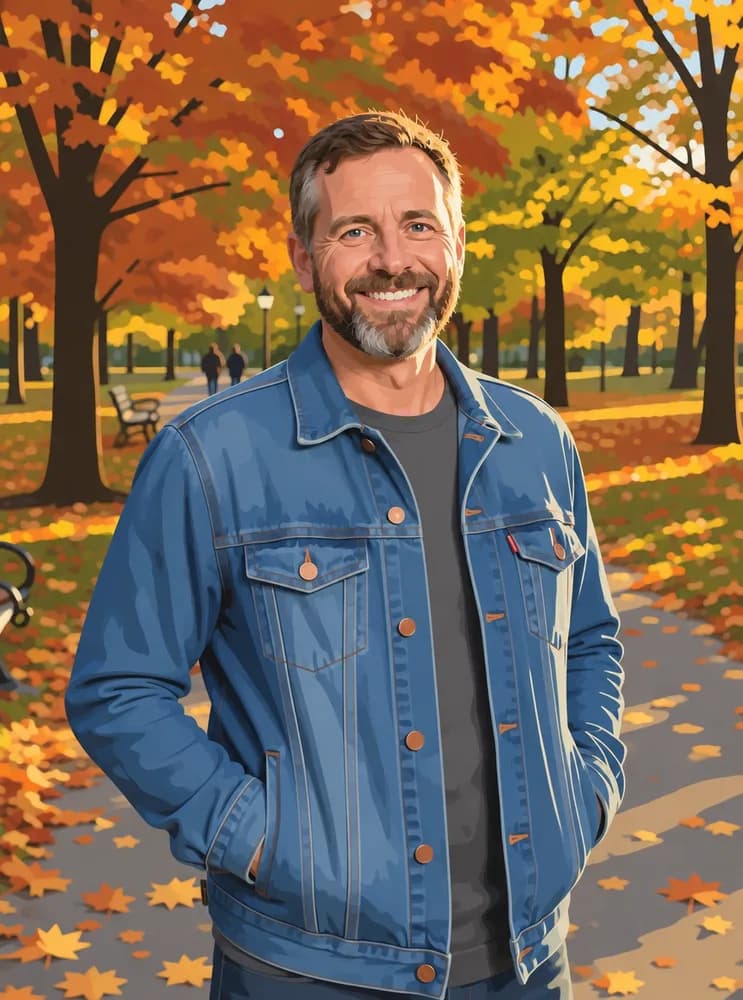
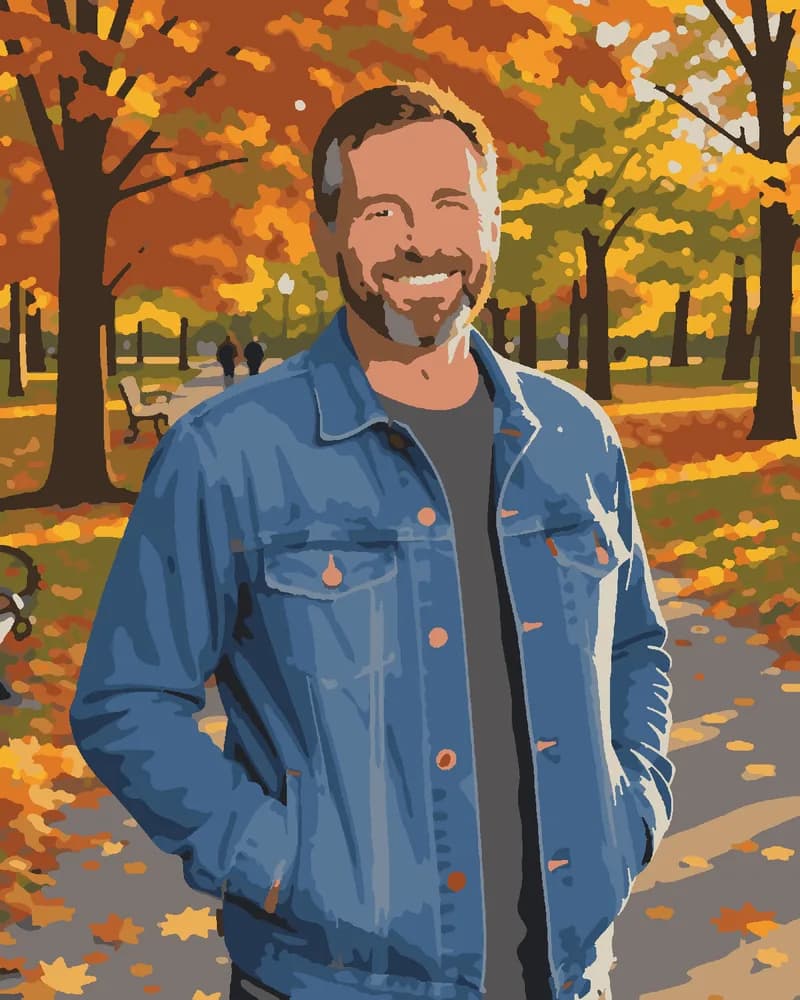
What you'll need
- A sharp, well-lit photo. Anything blurry or lost in deep shadow turns into a scatter of tiny areas that are no fun to paint.
- A close crop for portraits. The bigger the face is on the canvas, the more areas go to the eyes and smile.
- Some room at the edges. The pattern fills the whole canvas size you pick: a tall photo makes a portrait canvas, a wide one makes a landscape canvas, and whatever doesn't fit the proportions is trimmed off.
- Acrylic paints and a couple of fine synthetic brushes. Acrylics dry fast and cover the printed lines well.
Step by step
- Open Paint by Numbers from Photo and upload your photo.
- For a portrait or a pet, turn on "Prepare the photo with AI" (more on that below). Landscapes are usually fine without it.
- Pick a canvas size: A4, A3, 12 × 16 in or 16 × 20 in. Numbers are sized to stay readable on the canvas you choose.
- Pick 12, 24 or 36 colors and a detail level: Simple, Medium or Detailed.
- Hit "Create pattern". A few seconds later you can switch between three views: the numbered outline, the finished look and your original.
- Not quite right? Change a setting and build it again — it costs nothing. Happy with it? Download the PDF, and grab the outline as SVG or the preview as PNG if you need them.
Why the AI photo prep matters for faces and pets
A regular photo is full of noise, soft gradients and tiny highlights. The pattern builder faithfully splits all of that into areas, so skin, beards and fur end up as a mess of ragged little patches, and eyes that are barely an inch wide on the canvas melt into the shadows. The AI prep repaints the photo as clean areas of color while keeping the eyes, pupils, facial features and likeness intact. It usually takes 20–40 seconds.
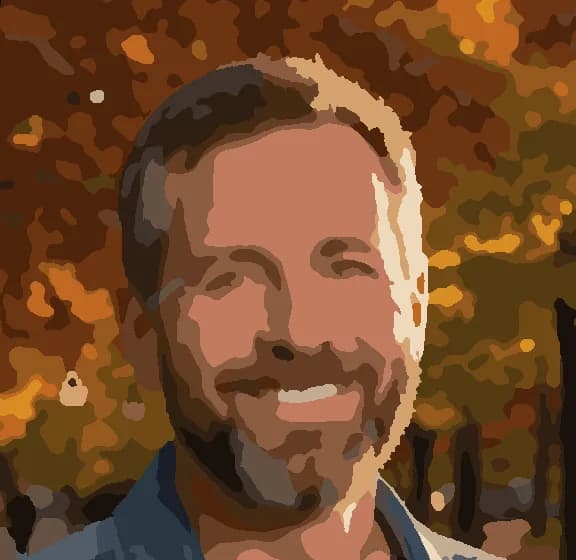
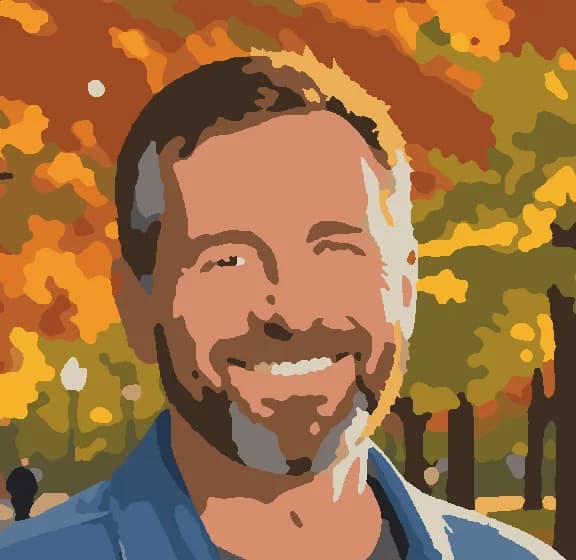
The prep costs 6 credits and you pay once per photo. After that you can rebuild the pattern at any size, color count or detail level without paying again. Skip it for landscapes, flowers and simple graphics.
Picking colors and detail
| Setting | Best for |
|---|---|
| 12 colors | Beginners, kids, flowers and bold graphic images |
| 24 colors | Portraits and pets — the sweet spot |
| 36 colors | Landscapes with soft skies and water |
| Simple | Fewer tiny areas, a quicker weekend project |
| Detailed | More detail and more fine-brush work |
What's in the PDF
On the English site the home-print pages come out on US Letter. Our 16 × 20 in portrait made a 12-page PDF:
- a cover page with the preview and short tips on printing and painting;
- the palette: number, color swatch, share of the canvas and a hint for mixing it from eight basic acrylics — white, black, yellow, red, blue, green, yellow ochre and burnt umber;
- the full-size outline, for a print shop;
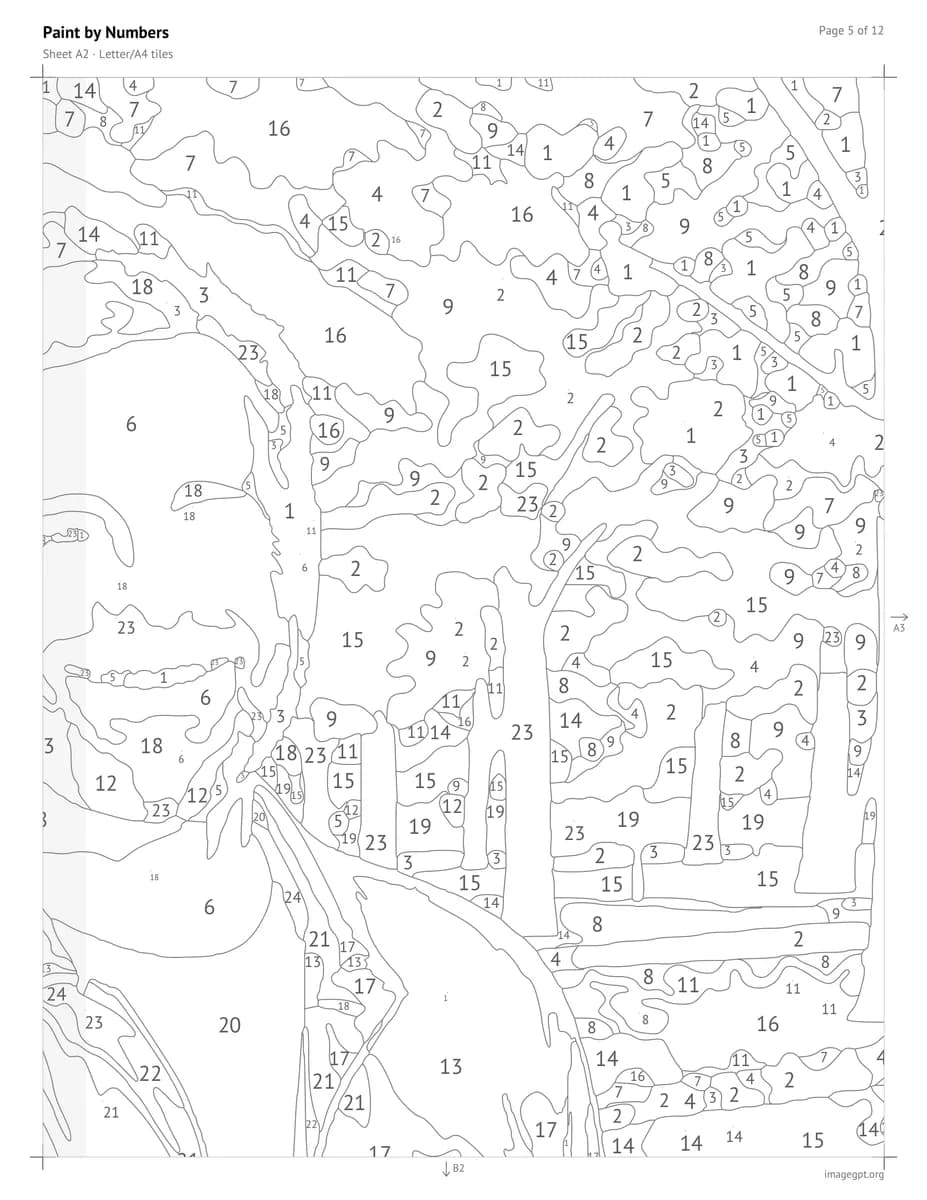
- the same outline split into nine Letter-size sheets with a 1 cm overlap and trim marks.
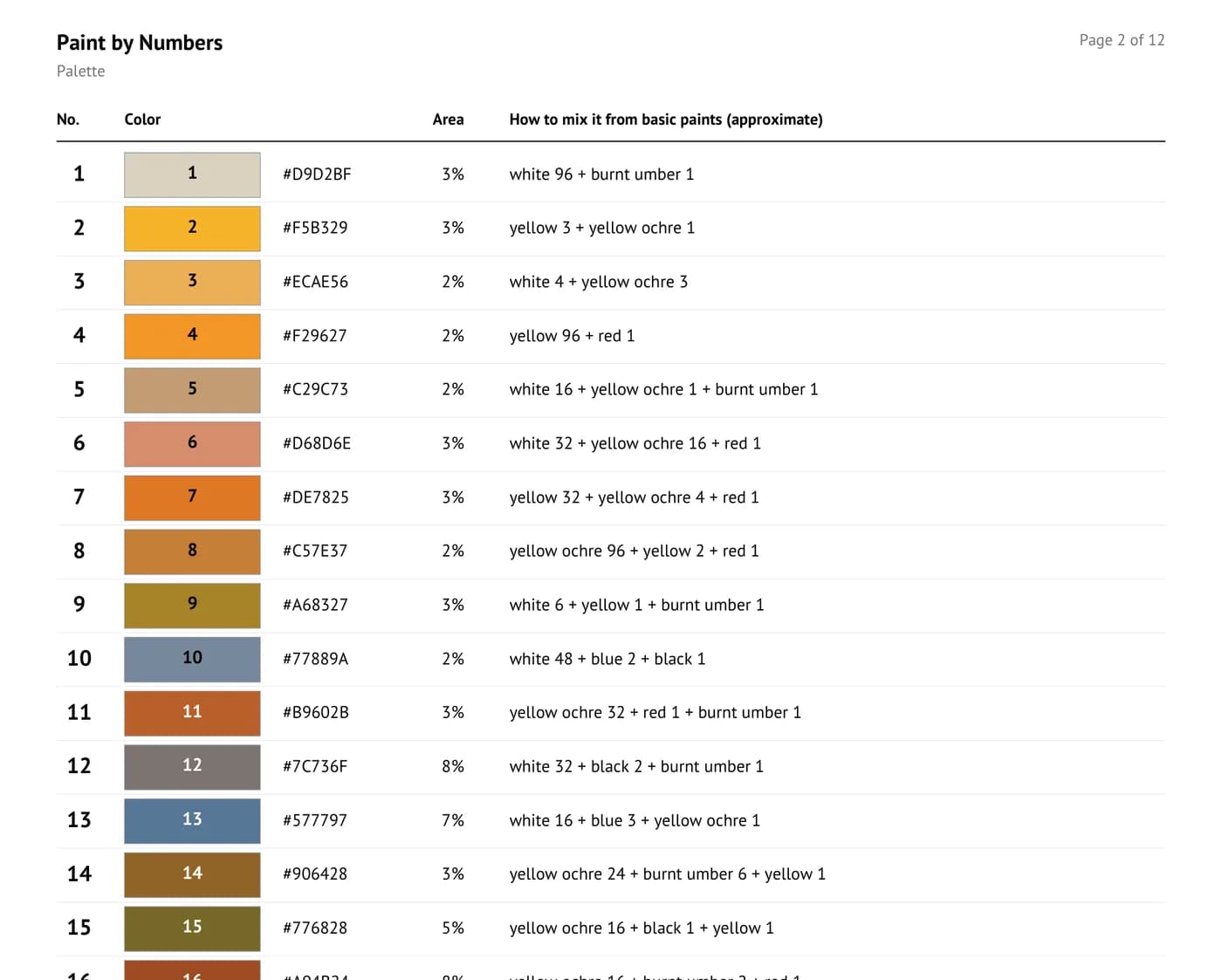
Treat the mixing hints as a starting point, not a recipe. For very light or very saturated shades they can read like "white 96 + burnt umber 1", which in practice means a speck of umber in a pot of white. Mix a little, compare it with the swatch and adjust. Or skip mixing entirely and buy ready-made acrylics in close shades.
Getting the outline onto canvas
- Print shop: hand over the full-size outline page and ask for canvas or heavy paper at 100% scale, not "fit to page". Stretch the canvas on a frame afterwards.
- Home printer: print the tiled sheets at 100%, trim the margins at the marks and tape them together, lining up the grey overlap strips. Each sheet is labeled, and arrows at the edges point to its neighbours. Then transfer the outline onto canvas with graphite paper.
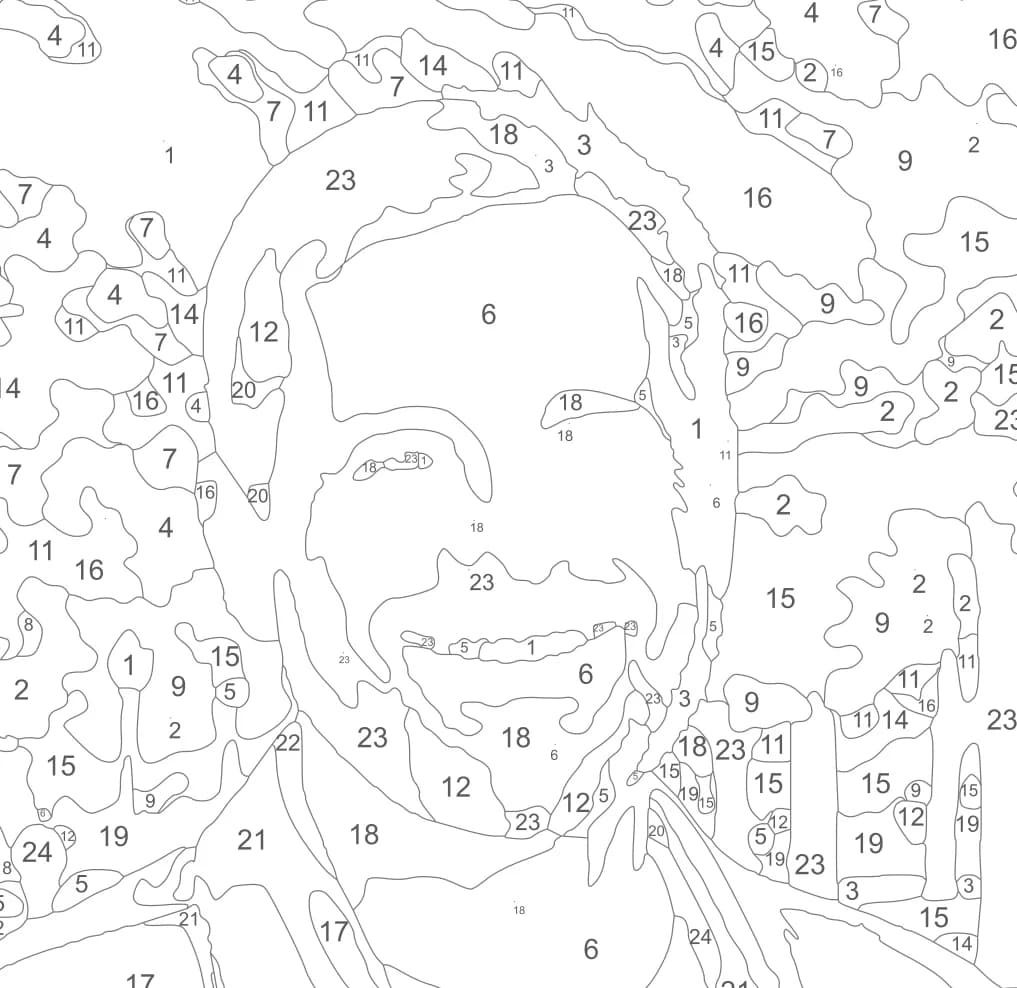
When you paint, go from dark and large areas to light and small ones. Put light colors over dark ones in two coats, letting the first dry, and rinse brushes straight away — acrylic sets fast. It also helps to print the palette page and dab each mixed color next to its number.
Ask the Assistant instead
You don't have to find the tool yourself. Attach a photo in the Assistant chat and say what you want; it opens the right tool with your photo loaded. For example:
turn this photo into a 16x20 paint by numbers
make a diamond painting pattern from this picture
Pricing
The pattern, palette, PDF and SVG are free, and you can rebuild them as many times as you like. The only paid step is the AI photo prep: 6 credits once per photo, shown before you start. New accounts get 6 free credits.
Prefer drills to paint? Diamond Painting from Photo works the same way: pick a size from 20 × 30 to 50 × 65 cm and 16–48 colors, and you get a chart for square 2.5 mm drills with DMC codes and a drill count for every color, plus 10% spare.
Upload a photo and get a numbered outline, a palette and a printable PDF.
Make paint by numbersExamples and answers about printing and paints on the tool page.
Paint by numbers from photoTry everything from this article in minutes
All the models and tools from this article are in one place. You get 6 free credits after sign-up, and every price is shown before you run it.
Make paint by numbers